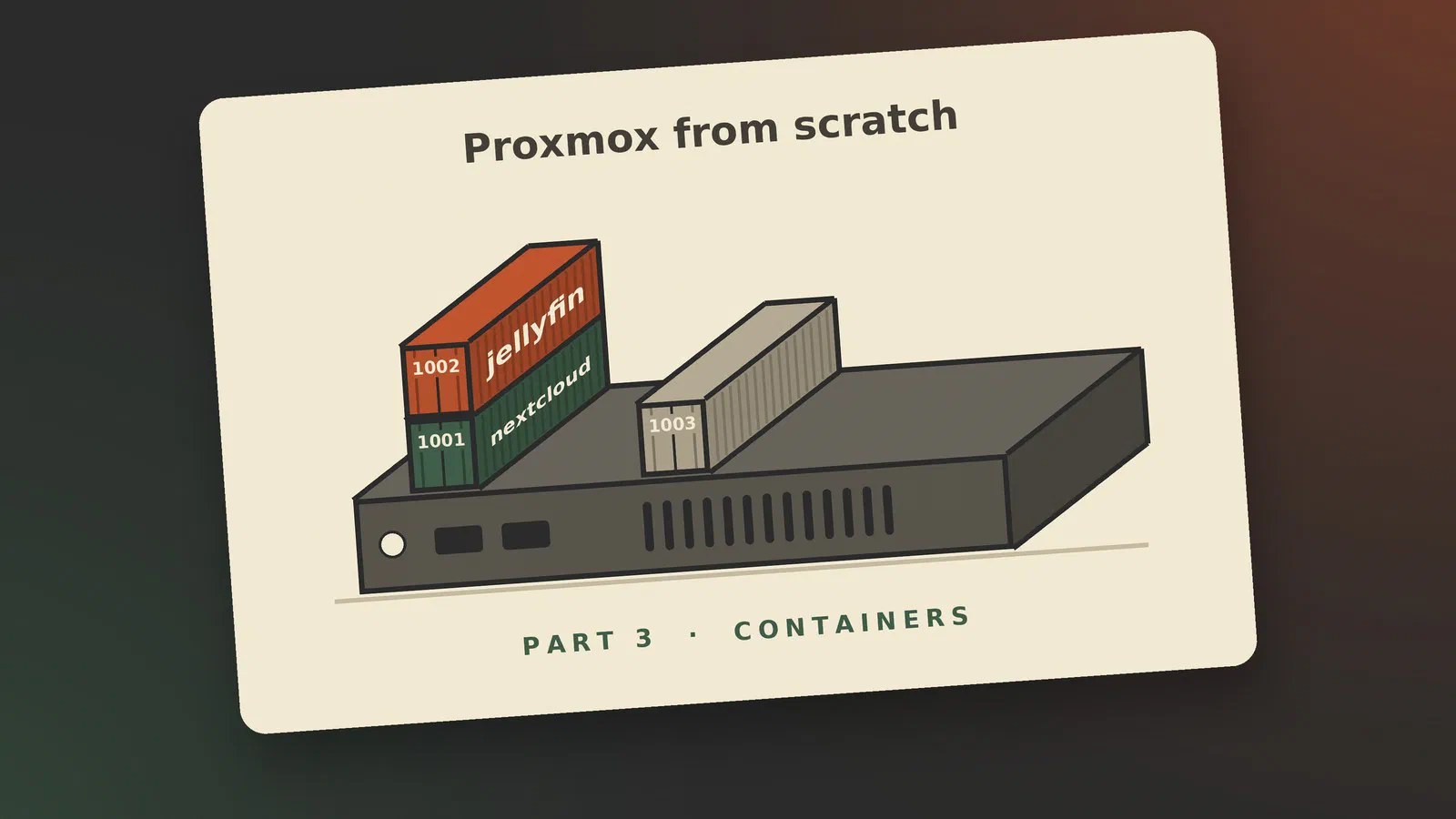
This is the third part of Proxmox from scratch. In part 2 we created a virtual machine. This time we make the other kind of guest, a container, and I show how I run my own services in them.
The container in this post is a real one: the one that will run Jellyfin on my main server, phoebe, in the coming Jellyfin at home series. The screenshots are from the evening I created it.
What is an LXC container?
A virtual machine pretends to be a whole computer, and the operating system inside it doesn’t know the difference. A container takes a shortcut. It has its own files, its own users, its own network address and its own list of running programs, but it does not have its own Linux kernel. It borrows the server’s. In the words of the documentation, containers “use the kernel of the host system that they run on, instead of emulating a full operating system” [1].
LXC is the name of the container technology Proxmox uses [1]. From the inside, an LXC container looks and feels like a small Linux server: you log in, install packages and start services the way you would in a virtual machine.
Containers vs virtual machines
What the shortcut buys you is weight. A container starts in a second or two, and it uses hardly any memory beyond what the programs inside it need. The documentation puts it like this: “The runtime costs for containers is low, usually negligible” [1]. On a small server that is the difference between running five guests and running twenty.
The price is in two places.
- Linux only. A container shares the server’s Linux kernel, and the documentation is blunt about what follows: “It is not possible to run other operating systems like, for example, FreeBSD or Microsoft Windows inside a container” [1].
- A thinner wall. A virtual machine is separated from the server by pretend hardware. A container is separated by rules in the kernel they share. Those rules are good, but it is a thinner wall than a virtual machine’s.
My own rule of thumb: a container for anything that is an ordinary Linux service, and a virtual machine when I need another operating system, a different kernel, or a thick wall around something I don’t trust.
Downloading a container template
A virtual machine is installed from an ISO image. A container is not installed at all. It is unpacked from a template. Templates are “tar archives which contain everything to run a container” [1]. That is why creating one takes seconds.
Proxmox offers templates for the common Linux distributions [1]. To fetch one, click the storage local in the tree, choose CT Templates, and click Templates. Find the Debian 13 one, named debian-13-standard, and click Download.
On the command line the same thing is pveam update to refresh the list and pveam available --section system to see it [1].
Since version 9.1 Proxmox can also make a container from an OCI image, which is the kind of image Docker uses. For containers that run a single application this is still marked as a technology preview [1], so I leave it alone for now.
Creating the container
Click Create CT at the top right. As with the virtual machine, a dialog opens with one tab for each part.
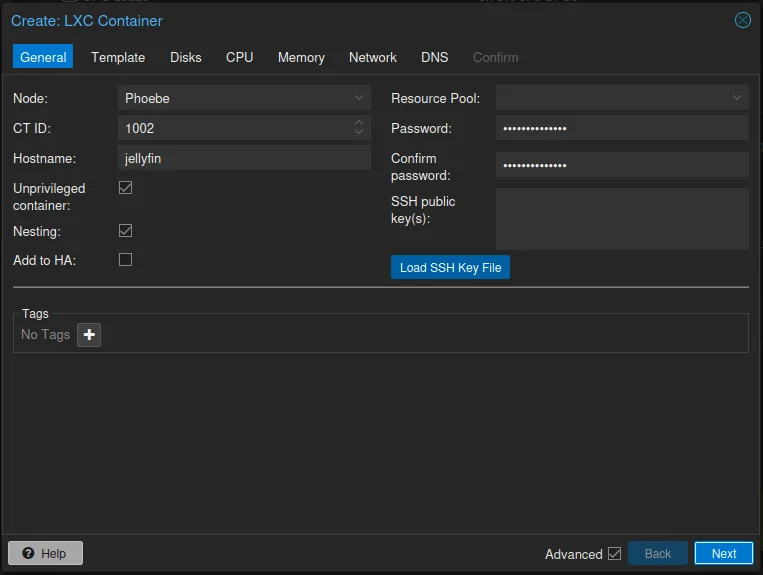
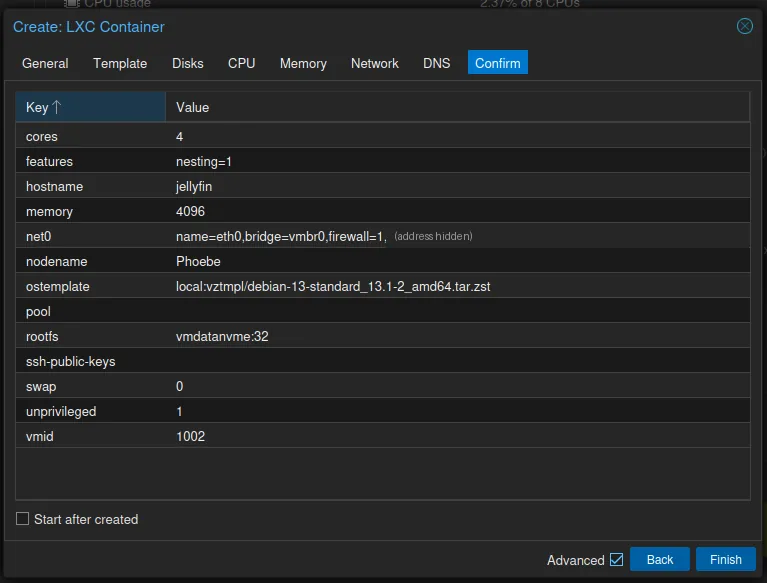
On the General tab the container gets its number, here called the CT ID, and a hostname. You also set the password for its root user here, and you can paste in an SSH public key [1]. Mine is number 1002, next to my Nextcloud container’s 1001, and its hostname is jellyfin.
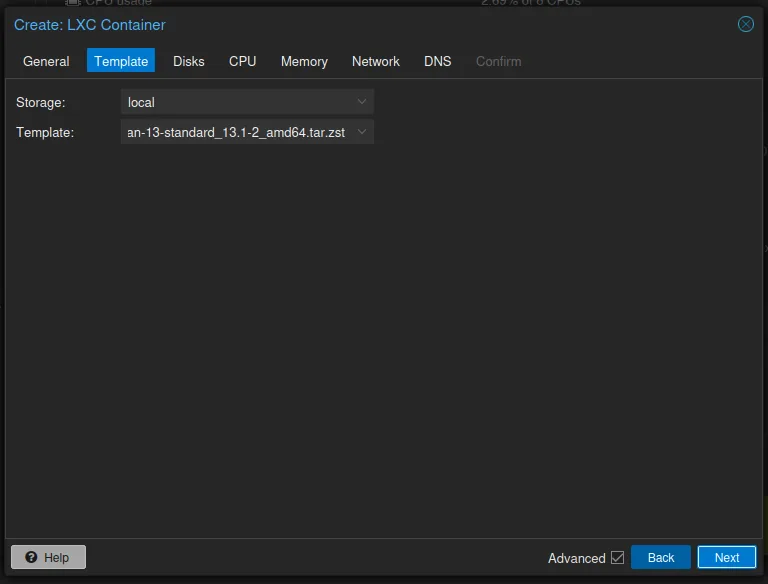
On the Template tab, choose the storage the template is on, local, and the Debian 13 template you downloaded. Mine was debian-13-standard_13.1-2_amd64.tar.zst.
Privileged vs unprivileged containers
The General tab has a box called Unprivileged container, and it is ticked. Leave it that way.
In an unprivileged container, the root user inside is not root on the server. “The root UID 0 inside the container is mapped to an unprivileged user outside the container” [1]. If something breaks out of the container, it arrives on the server as a user with no rights. The LXC project’s view, as the documentation reports it, is that “unprivileged containers are safe by design” [1].
A privileged container does not have that protection, and the same project considers such containers unsafe: they “should only be used in trusted environments” [1]. Old guides often tell you to make the container privileged to get something working. On a current Proxmox there is nearly always a better way.
Below it is a box called Nesting. It is ticked as well, and it should stay ticked: Debian’s own system services use it [1], and Docker needs it.
Resources, storage and mount points
The next three tabs set the size of the container. Here is what Proxmox suggested and what I chose:
| Tab | Suggested | My choice |
|---|---|---|
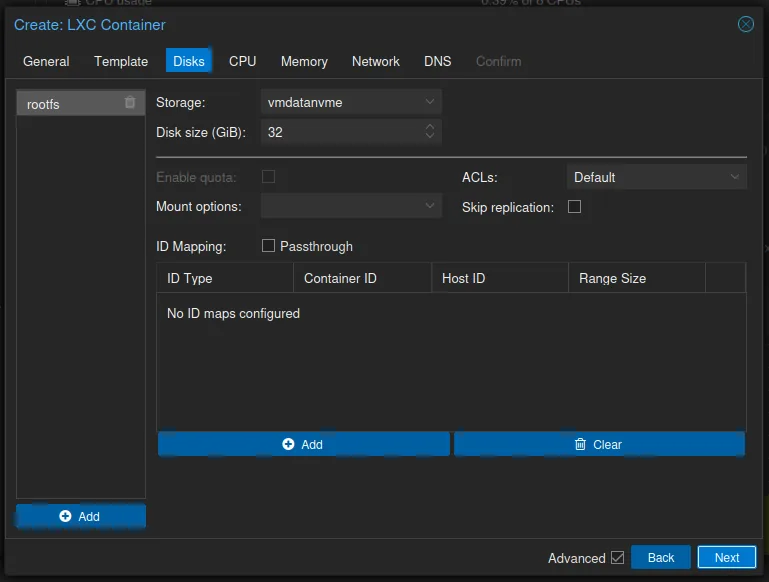
| Disks | 8 GB on local-zfs | 32 GiB on vmdatanvme |
| CPU | 1 core | 4 cores |
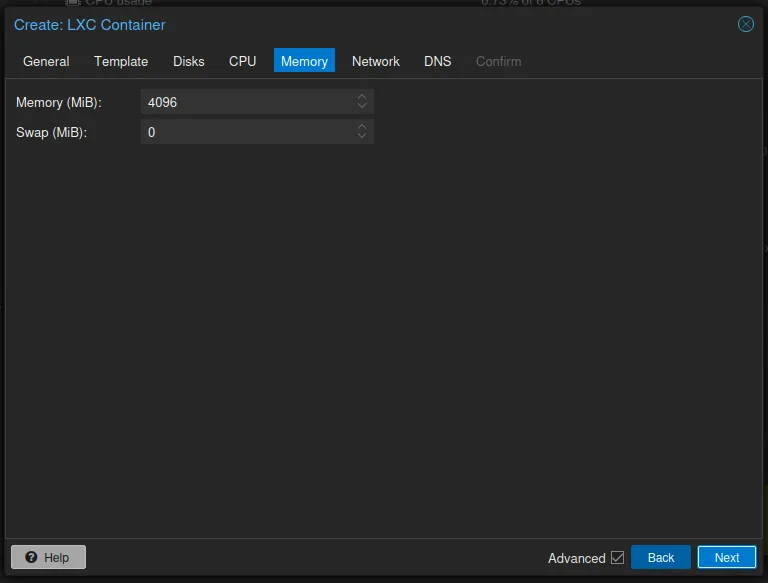
| Memory | 512 MB, and 512 MB swap | 4096 MB, no swap |
Disks. The container’s own disk is called the root disk. Proxmox suggests 8 GB on the storage it was installed with. My server was installed on ZFS, so for me that was local-zfs. On a server installed with ext4 or xfs it would be local-lvm instead: the installer then makes an LVM-thin pool for guest disks, and that is the storage Proxmox offers [3] [4]. I put the disk on vmdatanvme instead, the dataset where all my guests live and which is backed up every hour, and gave it 32 GiB. A root disk can be made larger later, not smaller, so I’d rather start with room.
CPU. The number of cores is how many of the server’s processor threads the container can see and use [1]. The suggestion is one. Jellyfin turns video into other formats on the fly, and until the graphics chip takes over that job, it is the processor doing it. So I gave it four.
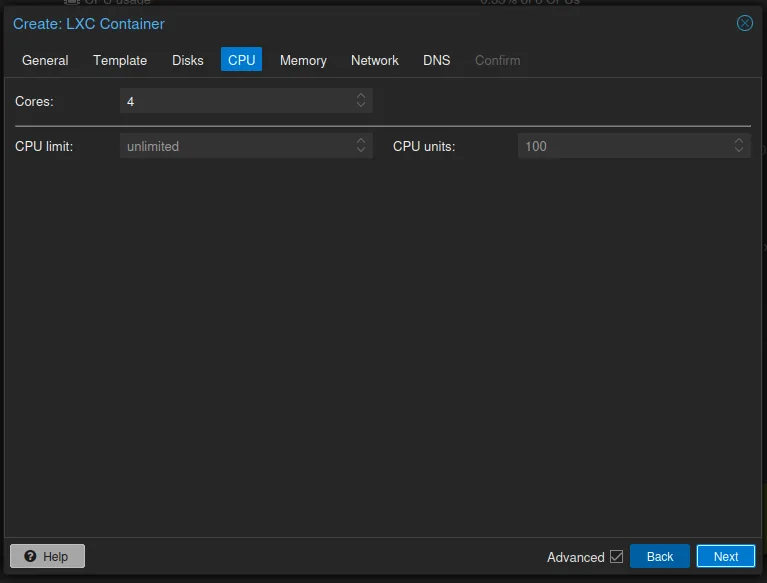
My server has eight threads, and my Nextcloud container already has four. Four more for Jellyfin looks like the server has given away everything and kept nothing for itself. It hasn’t. The cores setting is a limit, not a reservation: nothing is set aside, and the server shares its threads between itself and all the guests as they need them. The documentation says the same about virtual machines: “It is perfectly safe if the overall number of cores of all your VMs is greater than the number of cores on the server” [2]. It only gets crowded if Nextcloud and Jellyfin both work flat out at the same time, and in my house they rarely will.
Memory. The suggestion is 512 MB, with as much again in swap. That is enough for a plain Debian container, but not for Jellyfin. Jellyfin’s own advice is 8 GB for an average server, and “for a Linux server running without a GUI, 4GB may be enough” [5]. I started with 4 GB. If it turns out to be too little, it is one number to change.
I set swap to 0. A container’s swap is not a swap disk of its own: the setting “allows the container to use additional swap memory from the host swap space” [1]. I’d rather the container never wrote memory out to disk, to keep the writes on the server’s SSD down, and to see it plainly if 4 GB is not enough.
My server has no swap to lend in the first place: its Summary page says SWAP usage: N/A, and free on the server shows 0. So on my machine the 512 MB would have done nothing anyway.
These are limits, not reservations. A container that is doing nothing uses almost nothing, whatever the numbers say.
A container can also be given more storage than its root disk, through mount points. There are two kinds worth knowing about:
- A volume mount point is an extra disk that Proxmox creates and manages, and that follows the container in backups and snapshots.
- A bind mount point hands the container a folder that already exists on the server. It is the way to give a container access to a large collection of files without copying them. It comes with warnings. Proxmox does not manage a bind mount, and “the contents of bind mount points are not backed up when using vzdump” [1]. In an unprivileged container you can also run into permission problems, because the users inside don’t have the same numbers as the users on the server [1].
That last problem got easier in Proxmox VE 9.2. A mount point can now carry its own idmap option, which sets how user numbers are translated for that one mount point without changing the whole container [1]. I come back to this when the series gets to storage, and again in the Jellyfin and Nextcloud series, where a container needs a large folder of data.
Networking
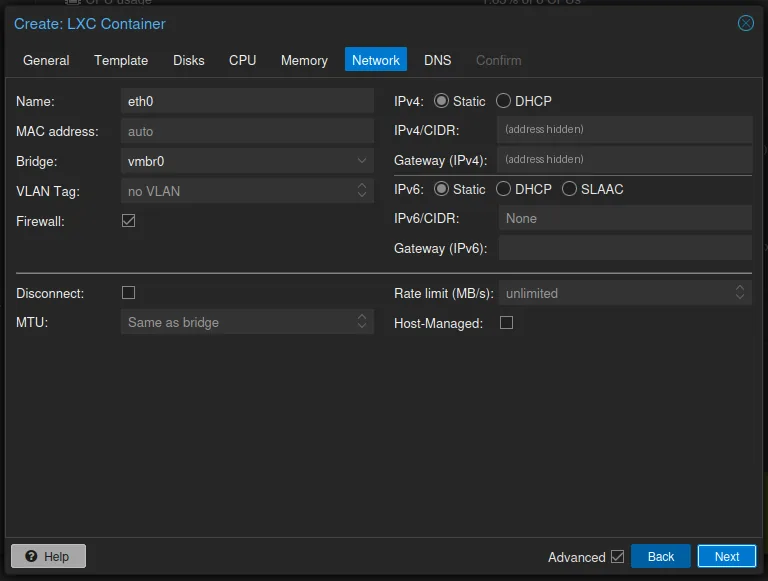
On the Network tab the container gets a network card named eth0, plugged into the same bridge as the virtual machine in part 2, vmbr0. Set IPv4 to DHCP to let your router hand out an address, or type a fixed one. I gave mine a fixed address, written as address and network size, for example 192.168.1.50/24, with the router’s address as the gateway. A server that apps and other machines talk to should not change its address. I left everything else on this tab as it was.
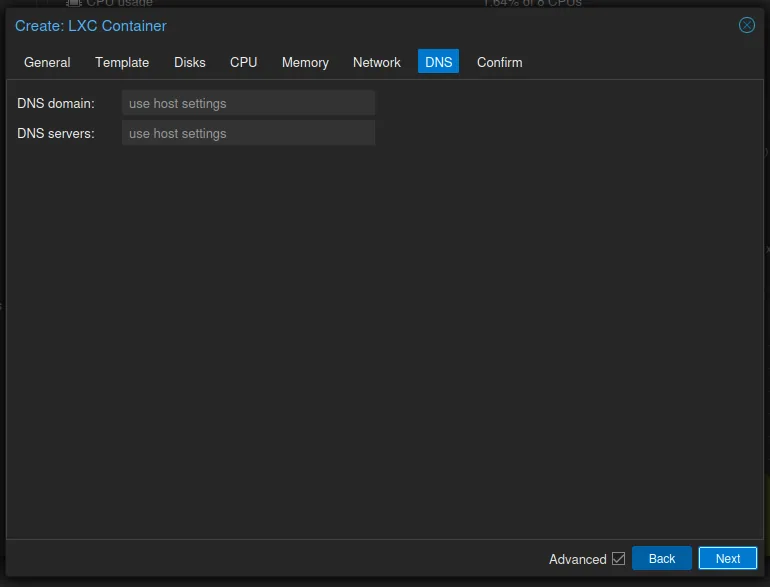
The DNS tab can be left alone; the container then uses the same DNS settings as the server.
The Confirm tab lists everything in one place. This is the moment to check it. You can tick Start after created here; I didn’t, and started it from its own page afterwards.
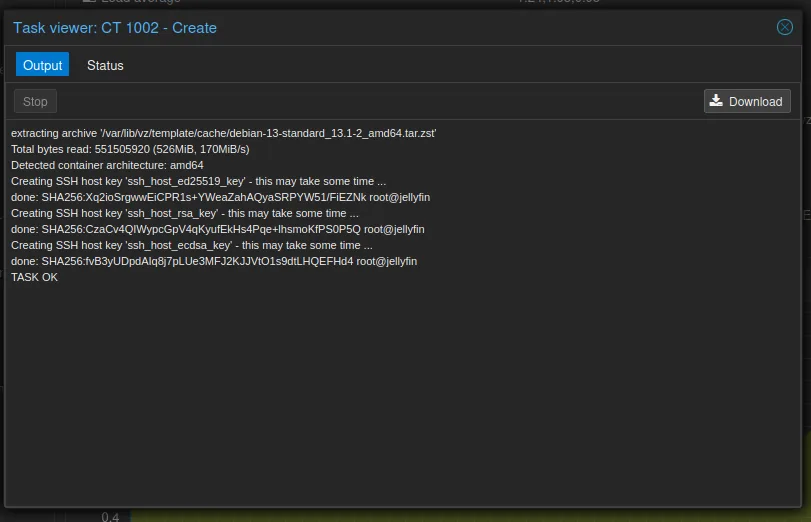
Click Finish. The template is unpacked, the container gets its own SSH keys, and it’s done:
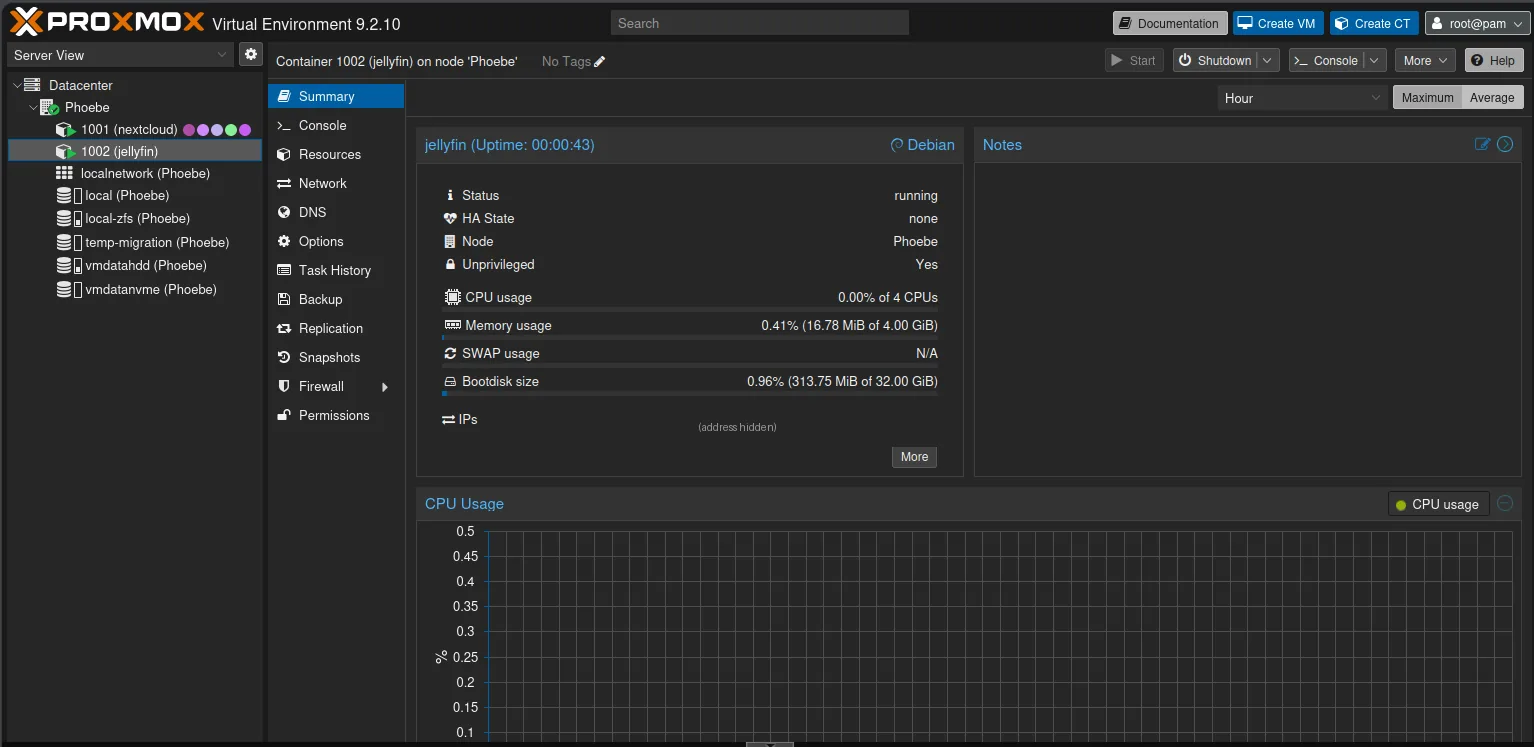
On its Summary page, less than a minute after starting, the new container uses 17 MB of memory and 314 MB of its disk:
First login and updates
Click the container in the tree and open Console. Log in as root with the password you chose.
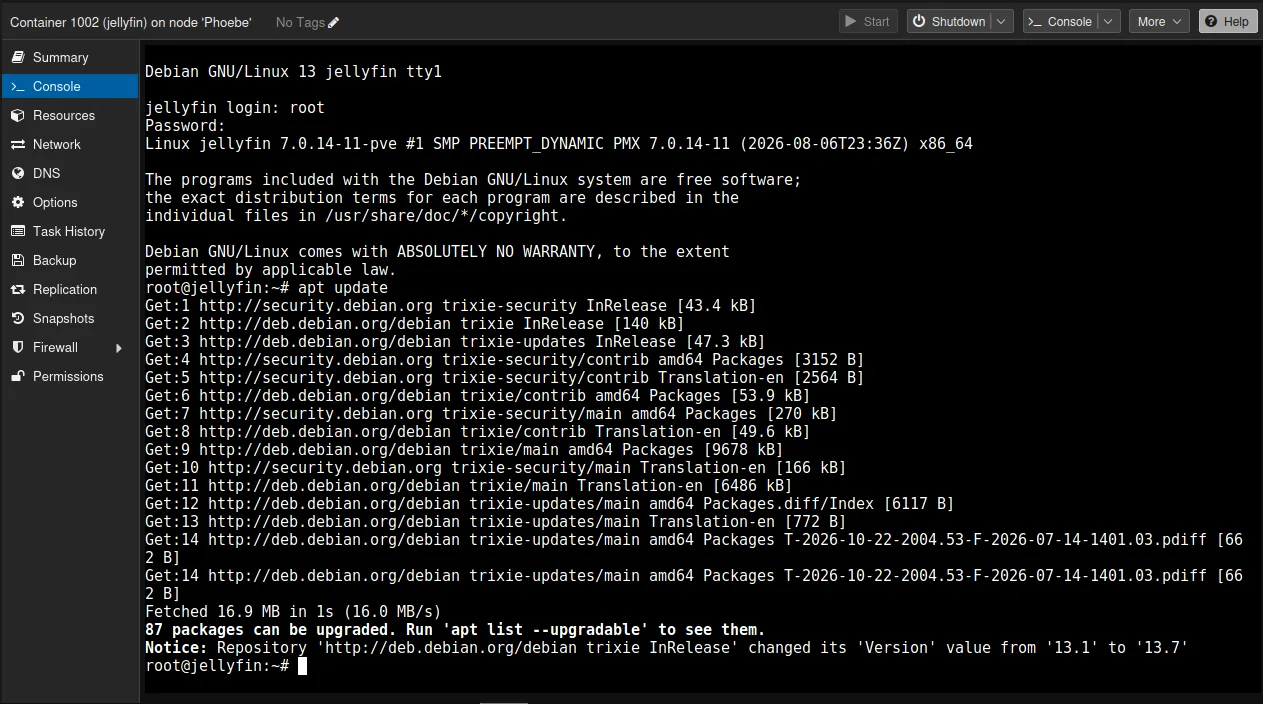
The template is a snapshot of Debian from the day it was built, so the first thing to do is update it:
apt update
apt upgrade
Mine was built from Debian 13.1, and Debian had got to 13.7 since. apt update found 87 packages with newer versions:
apt upgrade lists them and asks before it starts. About 56 MB to download, and less than a minute later the container was up to date.
![apt upgrade listing the 87 packages, from base-files and bash to xz-utils, with 55.6 MB to download and “Continue? [Y/n]”](/images/2026/10/pve-wui-phoebe-ct-1002-console-apt-upgrade.webp)
There is also a way in from the server itself. In a shell on the Proxmox server, pct enter followed by the container’s number puts you inside the container as root, without a password [1]. It is the handiest command I know for containers, and it is also a reminder of who is in charge: whoever is root on the server is root in every container.
Most of the time I simply use the Console in the Proxmox web interface. Now and then I log in over SSH instead. If you want to do that as root, note that Debian by default does not let root log in over SSH with a password, so add your SSH key on the General tab when you create the container, or afterwards in /root/.ssh/authorized_keys.
Docker inside an LXC
Most of the services I run at home come as Docker images, with a Compose file that describes how to start them. So my containers mostly hold one thing: Docker.
My layout is simple. Each service gets its own LXC container, and each container has one Compose file. Nextcloud lives in one container with its database and its cache. A helper that belongs to a service, such as the office server for Nextcloud, gets its own Compose file in that service’s container.
Why containers and not a virtual machine for each service? Three reasons.
- It is lighter. A container has no virtual hardware and no kernel of its own to run. Its programs are ordinary processes on the server, only fenced in.
- Memory is shared more easily. A container’s memory setting is a ceiling, nothing more: what the programs inside don’t use stays with the server for everyone else. A virtual machine is handed its memory as a block, and its own kernel soon fills what it doesn’t need with cache. Getting memory back from it takes ballooning, a driver inside the guest that hands pages back to the server [2]. It works, but it is one more mechanism, and a container doesn’t need it.
- Processor time is shared with less in between. Neither kind of guest owns its cores: as we saw above, giving out more cores than the server has is fine for virtual machines too [2]. But a virtual machine’s cores are threads that run its own kernel, which then schedules its own programs. In a container the server’s kernel schedules the programs directly.
The price is the one from the start of this post. The container runs on the server’s own kernel, which is exactly why it is light, and so the wall between it, the server and the other containers is thinner. A bug in the kernel, set off from inside a container, can bring down the whole server, and a break-in that gets out of a container lands on the server itself. Running the containers unprivileged takes the edge off that: whoever gets out arrives as a user with no rights.
I should say plainly that this is not what Proxmox recommends. The documentation’s position is that “for use cases demanding maximum isolation and the ability to live-migrate, nesting containers inside a Proxmox QEMU VM remains a recommended practice” [1]. In other words: Docker in a virtual machine. With my layout I give up moving a running service from one server to another without stopping it, since a container has to be stopped to be moved, and I accept the thinner wall described above. For services in my own home I think that is a fair trade. For something exposed to strangers I would use a virtual machine.
For Docker to work in an unprivileged container, two features have to be on, both under the container’s Options, in Features:
- Nesting, which was ticked when we created the container.
- keyctl. The documentation says about it: “This is required to use docker inside a container” [1].
After that, Docker is installed inside the container the same way as on any Debian server, following Docker’s own instructions for Debian.
Community helper scripts
If you search for how to install almost anything on Proxmox, you will meet the community helper scripts: one line to paste into the server’s shell, and a finished container appears with the service installed.
They started as one person’s collection. tteck, as he was known, wrote and kept them up for years, and since his death in 2024 a group of volunteers has carried them on as Proxmox VE Helper-Scripts, built “on the foundation of tteck’s original work” [6]. They cover Proxmox VE 8.4 and 9.0 to 9.2 [6].
The way they work is always the same. You find the service on the project’s website, copy its one-line command, and paste it into the Shell of your Proxmox server. The script then asks whether you want the default settings or the advanced ones, where you choose the container’s resources, network and storage yourself [6].
Where they can save you time:
- Containers for common services. Hundreds of them: Home Assistant, Jellyfin, Immich, Pi-hole, AdGuard Home, Vaultwarden, databases, monitoring and more [6]. The script creates the container, installs the service and sets it up, and the container gets a small helper of its own for updates afterwards.
- Tidying up a new server. The post-install script for the Proxmox host switches the package sources from the enterprise repository, which needs a subscription, to the free no-subscription one, can remove the subscription reminder in the web interface, can switch off the high-availability services on a single server, and updates it [7]. That is all work you would otherwise do by hand after an installation like the one in part 1.
- Trying something quickly. A throwaway container to see whether a service is for you takes a minute instead of an evening.
I don’t use them myself at the moment. I would still be careful with them, for a reason that has nothing to do with their quality. The line you paste runs a script from the internet as root on the server that holds everything else, and the project’s own instructions ask for exactly that: “Root shell access on the Proxmox host” [6]. Read a script before you run it. And for a first container, do it by hand once, as in this post. Then you know what the script would have done for you, and you can tell when it does something you didn’t expect.
What’s next
You now have both kinds of guest running. In the next part we look at where their disks live: storage in Proxmox, and what ZFS adds to it.
Sources
- Proxmox Container Toolkit (Proxmox VE 9.2 documentation), pulled 2026-10-12; CPU and memory sections pulled again 2026-10-25
- QEMU/KVM Virtual Machines: CPU and memory (Proxmox VE 9.2 documentation), pulled 2026-10-25
- Proxmox VE Storage: default configuration (Proxmox VE 9.2 documentation), pulled 2026-10-25
- Installing Proxmox VE: advanced LVM options (Proxmox VE 9.2 documentation), pulled 2026-10-25
- Jellyfin: hardware selection, pulled 2026-10-25
- Proxmox VE Helper-Scripts (community-scripts on GitHub), pulled 2026-10-25
- The PVE post-install script (community-scripts on GitHub), pulled 2026-10-25