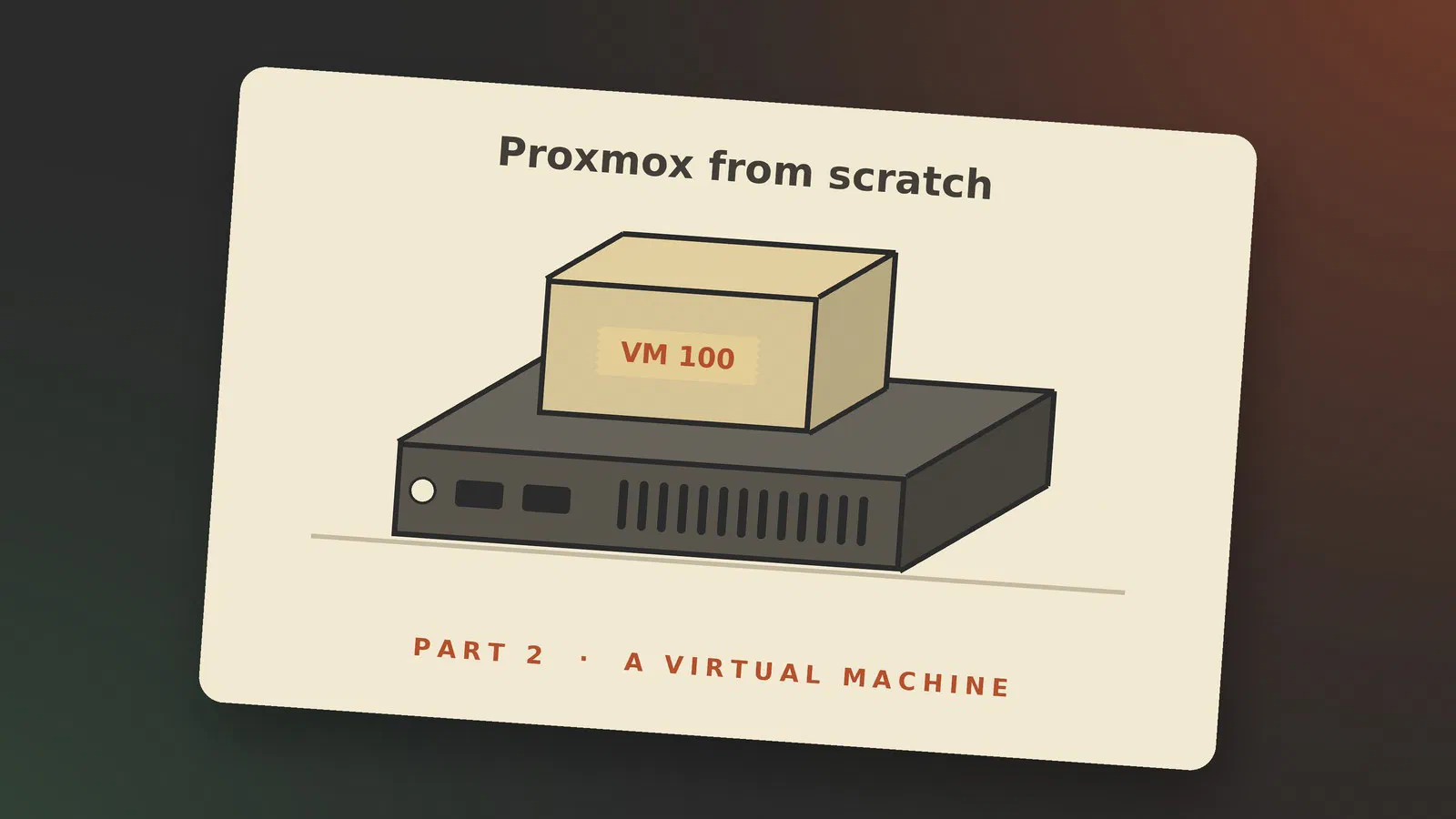
This is the second part of Proxmox from scratch. In part 1 we installed Proxmox VE on a small PC. Now we put it to use and create the first virtual machine.
A virtual machine, or VM, is a whole computer made of software. It has its own virtual disk, memory, processor and network card, and you install an operating system in it the same way you would on a real PC. That makes it the right place for things you don’t want on your own PC, like a test build of a desktop that may well have bugs. That is what I install in mine: the testing edition of KDE neon. I chose it on purpose, because it lets me try the coming Plasma releases before they come out, without risking the desktop I use every day.
Before you start: ISO images
To install an operating system you need its installer, and for a VM that is an ISO file, the same kind of file we wrote to a USB stick in part 1. This time the file goes onto the server.
A fresh Proxmox server has a storage called local, and ISO images are one of the things it is set up to hold. On the disk they end up in the folder template/iso/ [1].
There are two ways to get the file there. In the web interface, click the storage local in the tree on the left and choose ISO Images:
- Upload sends a file from the computer you are sitting at.
- Download from URL makes the server fetch it directly. This is the quicker way, because the file doesn’t have to pass through your own computer.
KDE neon comes in several editions. The Testing Edition has “pre-release KDE software built the same day from bugfix branches”, with “some QA in readiness for promotion to user edition”, and the download page says plainly that it “will contain some bugs” [5]. Fine for a VM you can throw away.
Copy the link to the ISO from the download page, paste it into URL and click Query URL. Proxmox looks the file up and fills in the name and the size: 3.15 GiB for this one.
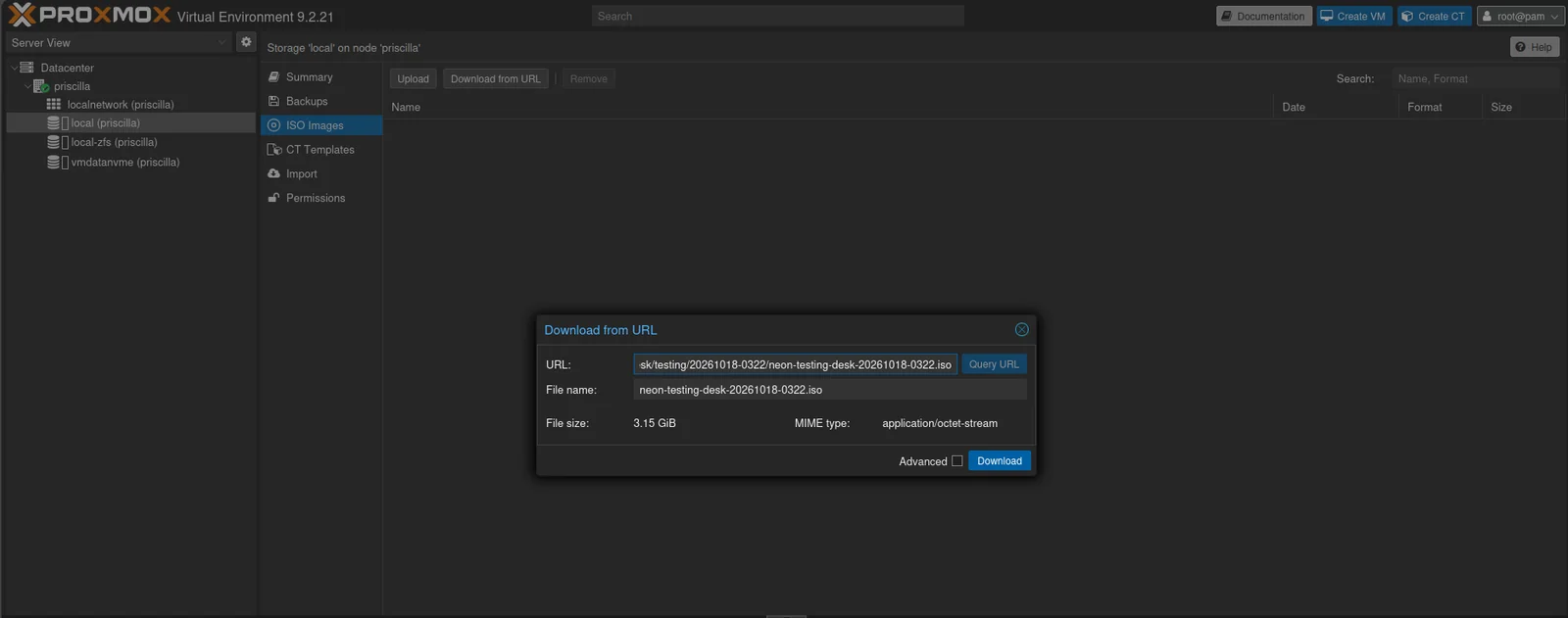
Click Download. A task window shows the progress, and on my connection the whole file took under a minute.
If you want a server rather than a desktop, the same steps work for any other ISO. For Debian, the file you want is the small network installer, with a name like debian-13.x.x-amd64-netinst.iso.
Creating the VM
Click Create VM at the top right. A dialog opens with one tab for each part of the virtual computer. I go through them in order. Most of the defaults are good, so for each tab I only describe what is worth knowing.
General
On the General tab the VM gets a number and a name. The number is the VM ID, “a unique number in this Proxmox VE installation used to identify your VM” [2]. Proxmox suggests the next free one, starting at 100. The name is for you. I called mine neon-testing.
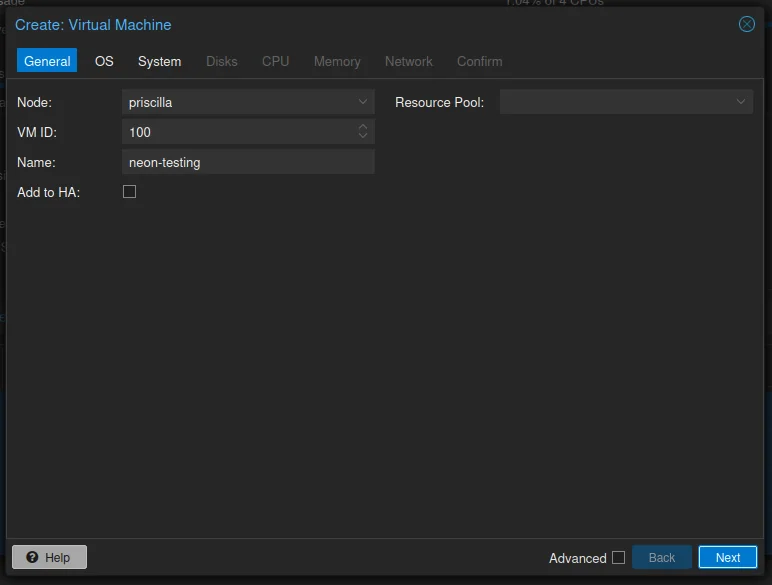
It pays to decide on a system for the numbers before you have many guests. One simple way is to give virtual machines one range and containers another. My virtual machines start at 100, as Proxmox suggests, and my containers at 1001, so the two never mix.
OS
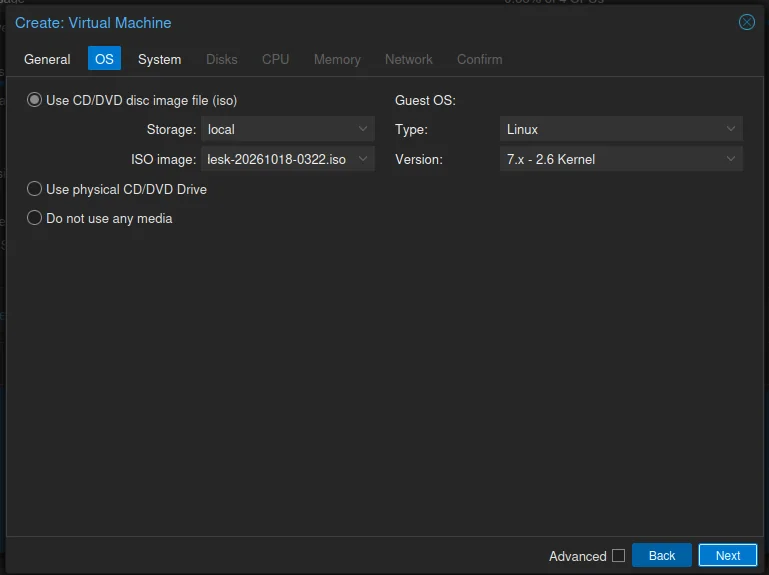
On the OS tab, choose the storage local and the ISO image you just downloaded. Then tell Proxmox what kind of system it is. For any current Linux, that is Linux and the version 7.x - 2.6 Kernel, which covers every kernel from 2.6 onwards. The choice matters a little: “setting the proper Operating System(OS) allows Proxmox VE to optimize some low level parameters” [2]. The example the documentation gives is the clock, which Windows expects in local time and Linux in UTC.
System
This tab decides what kind of motherboard the VM appears to have.
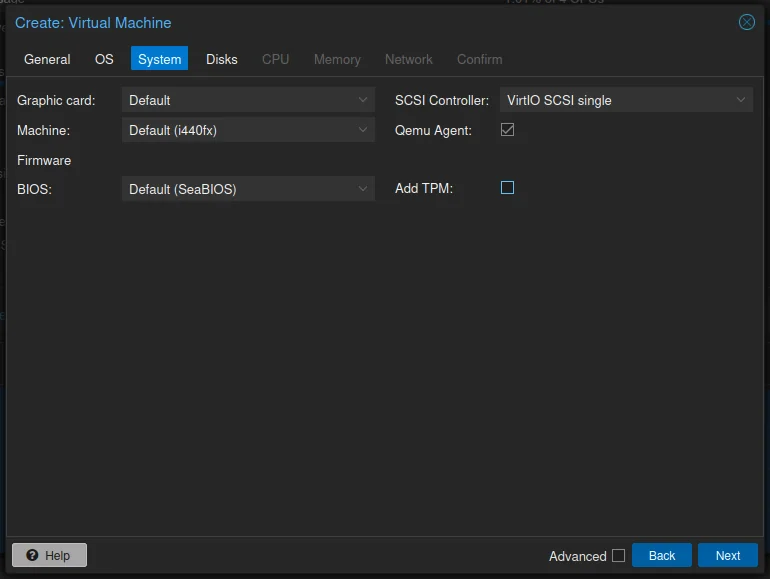
- Machine. The default is the older Intel 440FX chipset. The other choice, Q35, “also provides a virtual PCIe bus” [2]. You need that if you later want to hand a real piece of hardware to the VM, which is a subject for a later part of this series.
- BIOS. The default is SeaBIOS, a classic BIOS, and the documentation calls it “a good choice for most standard setups” [2]. The alternative is OVMF, which is UEFI. Some systems need it, Windows 11 among them [2].
- SCSI controller. Leave it at VirtIO SCSI single. More on that under Disks.
- Qemu Agent. Tick this box. The agent is a small program we install in the guest further down, and it lets Proxmox shut the VM down properly and see its IP address.
- Graphic card and Add TPM stay as they are. A TPM is for Windows 11, see the section on Windows below.
For Linux, the defaults plus the agent box are all you need.
Disks
The VM gets one virtual disk. Three choices matter here.
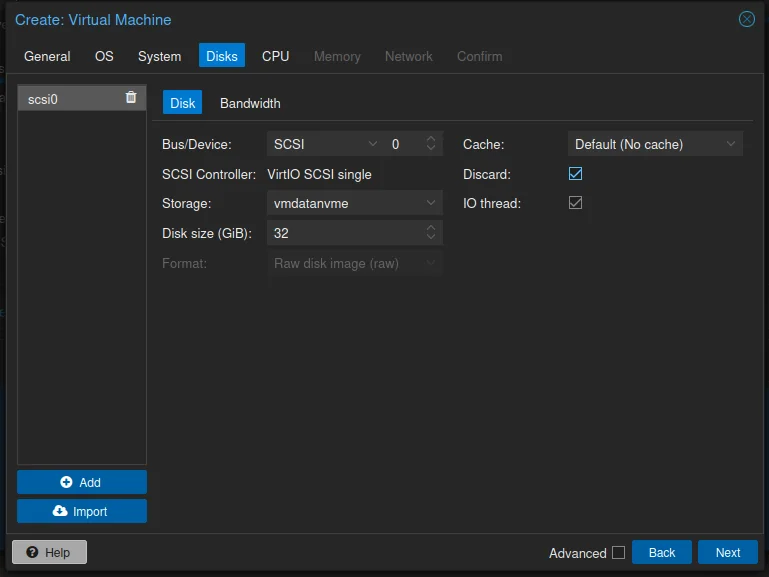
The bus. This is how the disk is connected inside the virtual computer. Proxmox can imitate old IDE and SATA controllers, which every operating system understands, but they are slow. The documentation is clear: “It is highly recommended to use the VirtIO SCSI or VirtIO Block controller for performance reasons and because they are better maintained” [2]. The wizard’s default, SCSI on a VirtIO SCSI single controller, is that recommendation, and it has been the default for new Linux VMs since Proxmox VE 7.3 [2]. IO thread is ticked along with it, and can stay that way.
The storage and the size. If you chose ZFS in part 1 and haven’t added any storage since, the disk goes on local-zfs. Mine goes on vmdatanvme, a storage I have set up for the disks of my virtual machines and containers, so that they are kept apart from the system and are easy to back up. Part 4, on storage, shows how. The default size is 32 GiB, which is plenty for a test system. The disk only takes up the space that is actually used, and it is easier to grow a disk later than to shrink it.
Discard. Tick it. When files are deleted inside the VM, the guest can then tell the storage that the space is free again, and the storage hands it back [2]. Without it, a virtual disk only ever grows.
CPU and memory
On the CPU tab you choose how many cores the VM gets. If you don’t know what the VM will be doing, the documentation has a starting point: “it is usually a safe bet to set the number of Total cores to 2” [2]. That is what I gave this one: one socket with two cores. You can also give out more cores in total than the server has. Proxmox shares the real ones between the VMs, the way an operating system shares them between programs [2].
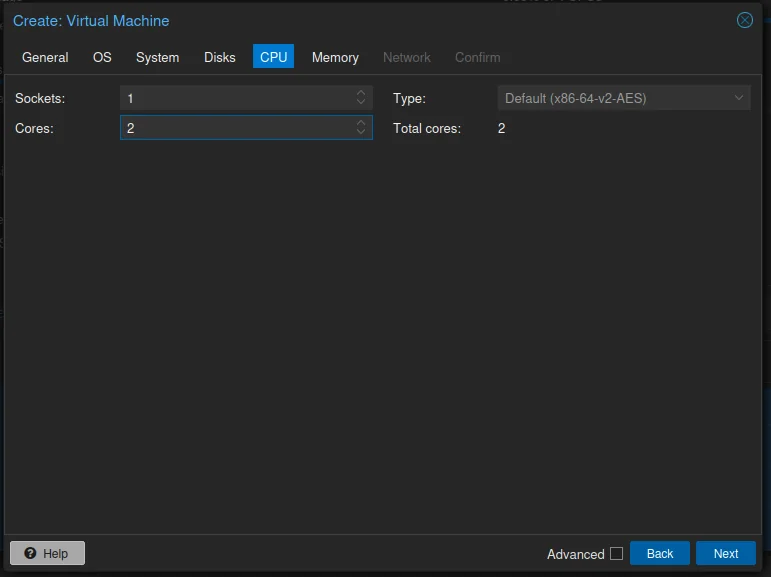
The Type decides which processor the VM believes it has. The default is x86-64-v2-AES, a made-up processor with the features nearly every PC from the last fifteen years has. The other choice people use is host, which gives the VM exactly the processor in the server. That is a little faster for some work, but there is a price: a VM set to host may refuse to start on a server with a different processor [2]. I will have two servers with different processors, an AMD and an Intel, so I leave it at the default.
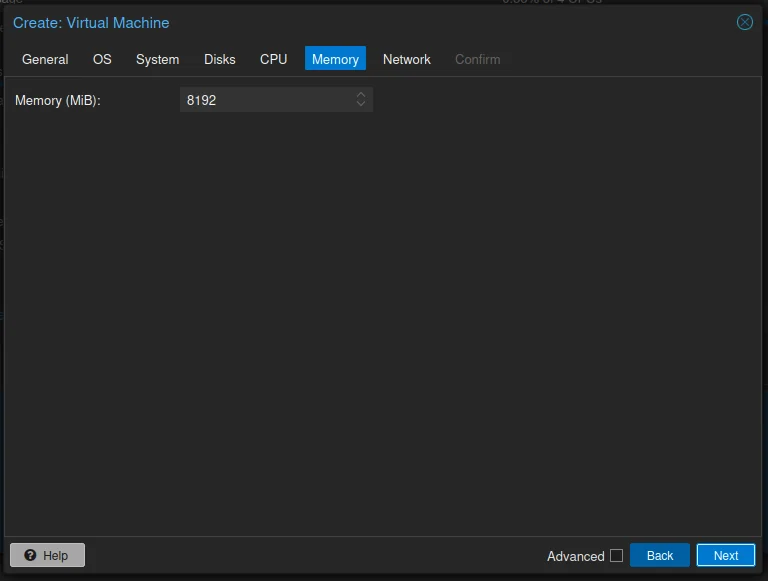
On the Memory tab, set how much RAM the VM gets, in MiB. A Debian server without a desktop does fine with 2 GB. A full Plasma desktop wants more, so this one gets 8192 MiB, which is 8 GB of the 32 GB in my server. Don’t give away everything: “a good rule of thumb is always to leave 1GB of RAM available to the host” [2], and if you use ZFS, the host needs more than that, as described in part 1.
Network
The VM gets a virtual network card, which is plugged into a virtual switch on the server. That switch is called a bridge, and the one the installer made is vmbr0. A VM on vmbr0 is on your home network like any other device and gets an address from your router: “VMs have direct access to the Ethernet LAN on which the host is located” [2].
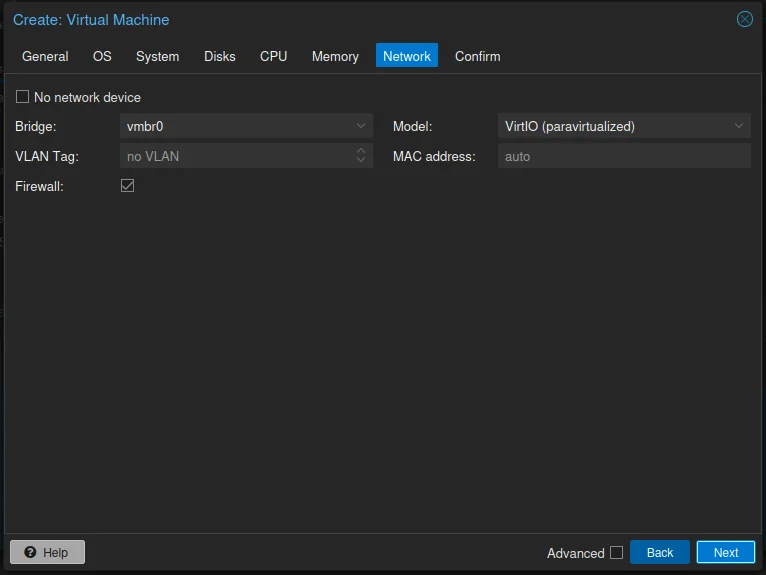
For the model of the card, keep VirtIO. It “should be used if you aim for maximum performance” [2], and Linux has the driver for it built in. The Firewall box can stay ticked; it makes no difference until you set up Proxmox’s own firewall.
Bridges, VLANs and more than one network get their own part later in the series.
Confirm
The last tab, Confirm, lists everything you chose. It is worth a look, because this list is the VM’s configuration as Proxmox stores it: scsi0 is the disk on vmdatanvme with discard and IO thread on, net0 the network card, ide2 the ISO in the virtual CD drive, and agent 1 the box for the guest agent.
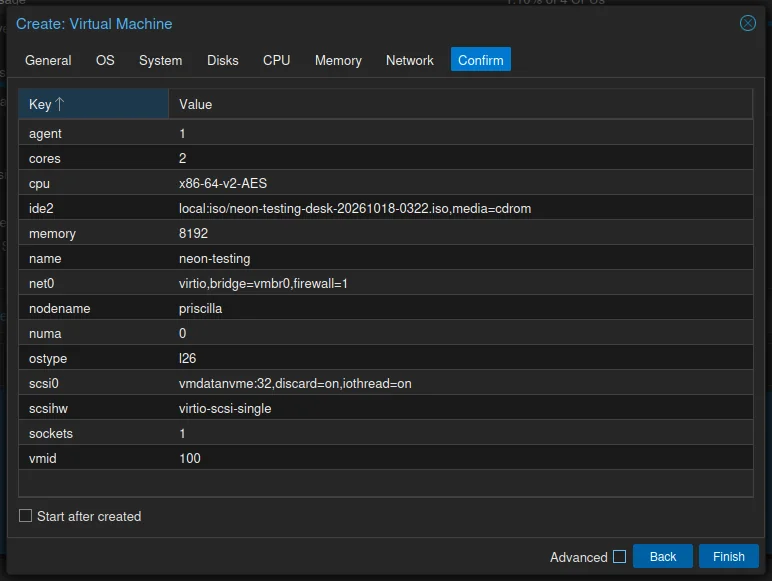
Tick Start after created if you want to go straight on. I left it unticked, so I could look at the VM before it started. Click Finish.
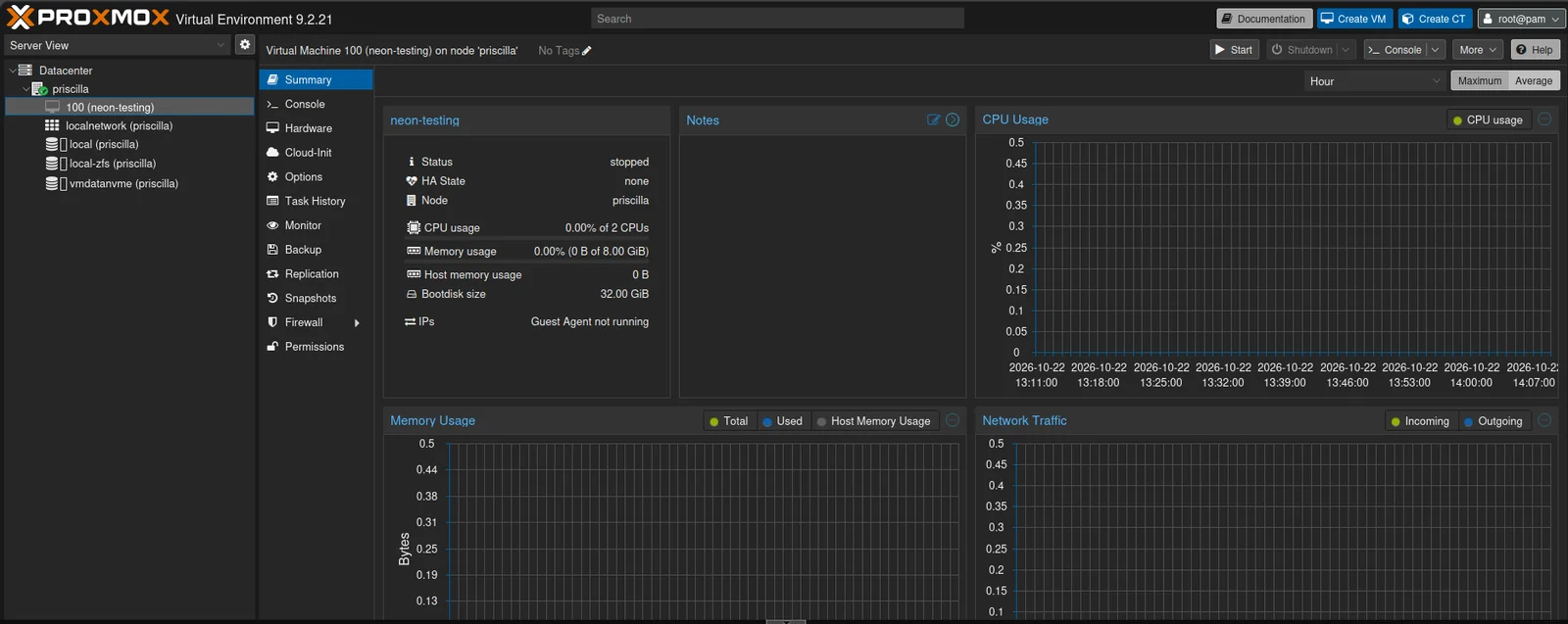
The VM now shows in the tree on the left, as 100 (neon-testing). Its Summary says it is stopped, and that the guest agent isn’t running, which is expected: there is no operating system in it yet.
Installing the guest operating system
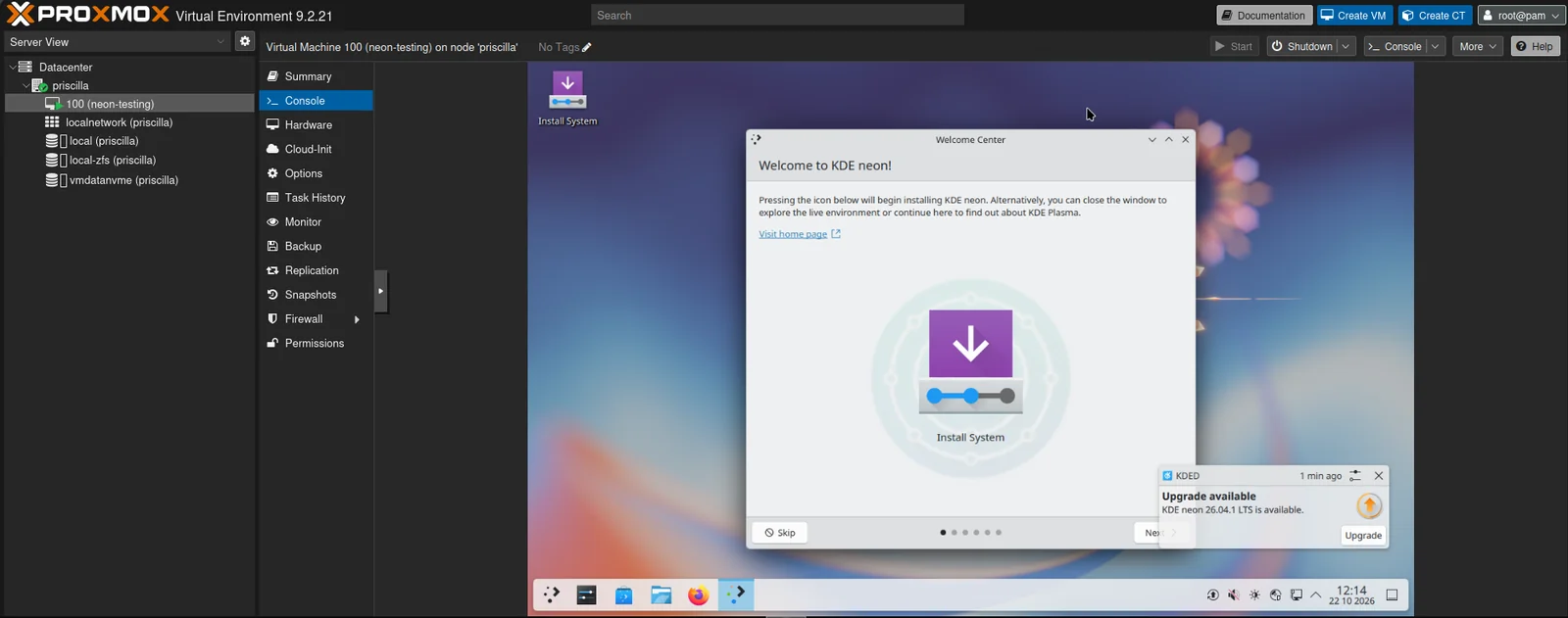
Click Start at the top right, then Console in the VM’s menu. You now see the VM’s screen in the browser, and it boots from the ISO the way a PC boots from a USB stick.
KDE neon starts a live desktop, which runs from the ISO without installing anything, with a welcome window and an Install System icon.
The installer goes through the usual steps, listed down its left side: language, location, keyboard, partitions, a user, and then the installation itself.
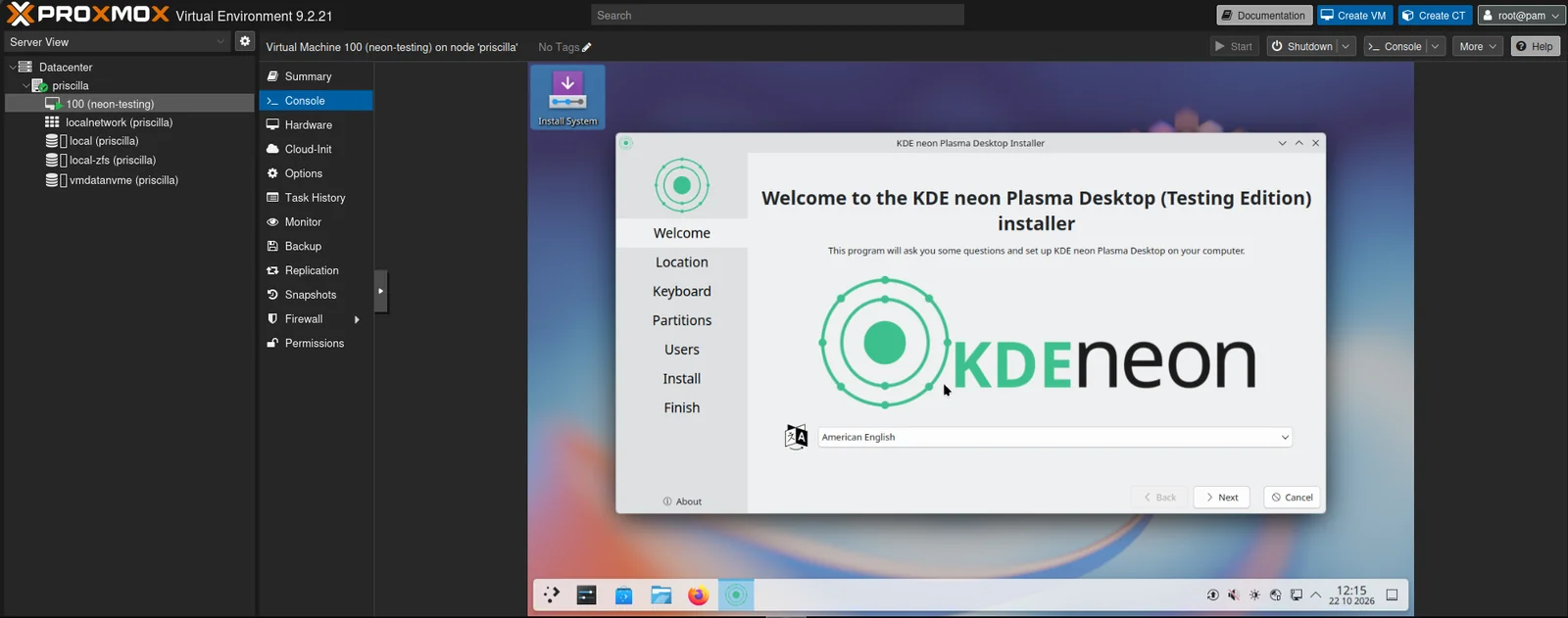
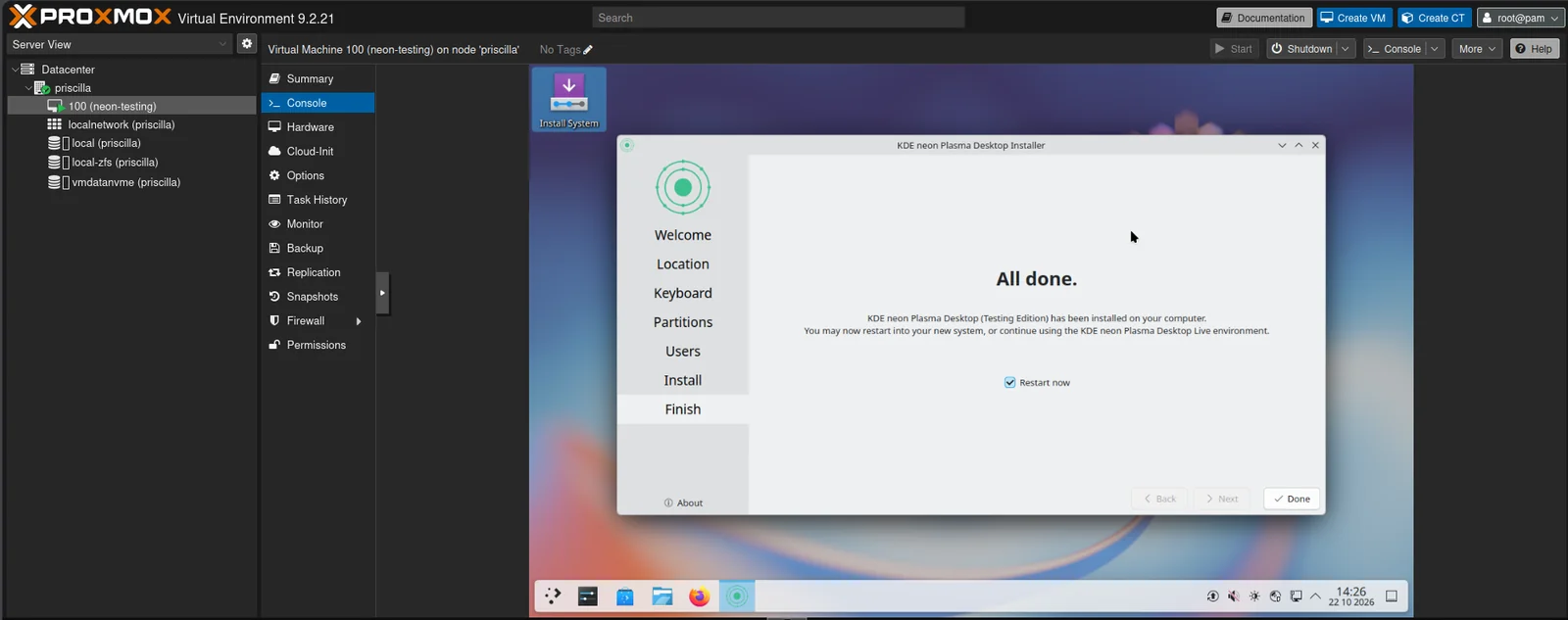
At Partitions, let it erase the whole disk. It is the virtual one, so nothing else is on it. The installation took about ten minutes on my server. When it says All done, leave Restart now ticked and click Done.
For a Debian server, the installer looks different but the steps are the same. Two things are worth choosing with care there: at the software selection, untick the desktop environment and tick SSH server and standard system utilities, and afterwards log in over SSH from your own computer rather than in the console.
Windows guests and VirtIO drivers
Windows works well as a guest, but it needs three things that Linux doesn’t.
First, Windows 11 has requirements for the virtual hardware. It needs UEFI, so set the BIOS to OVMF, which also means adding a small EFI disk where settings such as the boot order are kept [2]. And it needs a TPM, which you add on the same tab, in version 2.0 [2]. If you choose Windows on the OS tab, the wizard sets this up for you.
Second, Windows has no VirtIO drivers of its own: “Windows does not have native support for VirtIO devices included” [3]. So a Windows installer cannot see a VirtIO disk. The fix is the driver ISO from the virtio-win project. Upload it next to the Windows ISO, and add it to the VM as a second CD drive; the OS tab has a box for exactly that. When the Windows installer asks where to install and shows no disks, choose Load driver and point it at the driver CD.
Third, after the installation, open the driver CD in Windows and run virtio-win-gt-x64. It installs the rest of the drivers, for the network card among others, and the guest tools on the same CD install the QEMU guest agent [3].
One thing Proxmox VE 9 has made easier: Microsoft’s Secure Boot certificates from 2011 are being replaced by new ones from 2023, and EFI disks created on a current Proxmox contain both sets [2]. A VM you create today will not run into that problem.
Installing the QEMU guest agent
The guest agent is a small service inside the VM that Proxmox can talk to. With it, a shutdown from the web interface is a proper shutdown, the VM’s IP addresses show on its summary page, and backups can ask the guest to bring its files to rest first.
In KDE neon, which is built on Ubuntu, and in Debian, it is one package [2]. In the installed system, open a terminal (Konsole in Plasma) and run:
sudo apt install qemu-guest-agent
sudo systemctl start qemu-guest-agent
If you ticked the box on the System tab, that is all. If you didn’t, switch it on under the VM’s Options, and then shut the VM down completely and start it again: “A fresh start of the VM is necessary for the changes to take effect” [2]. A restart from inside the guest is not enough.
Templates and cloud-init
When you have installed the same system three times, you start wishing for a shortcut. Proxmox has two.
The first is a template. Set up a VM the way you like it, with updates, the guest agent and your user, then right-click it and choose Convert to template. A template can no longer be started. It is a master copy: “Such templates are read-only, and you can use them to create linked clones” [2]. From then on, a new VM is a right-click and Clone.
A clone comes in two kinds. A full clone is an independent copy, with nothing shared with the original. A linked clone is made in a moment and “initially consumes no additional space”, because it reads unchanged data from the template and only stores its own changes [2]. The price is that the template has to stay for as long as the clone exists.
The second shortcut is cloud-init, which sets the name, the user, the SSH key and the network of a new VM from outside, before it starts for the first time [4]. Together with a template it makes a new server a matter of seconds. It is more than this part has room for, so for now it is enough to know that it exists.
What’s next
You now have a virtual machine running on your server. In the next part we look at the lighter alternative: LXC containers, which share the server’s own Linux kernel and need far less memory.
Sources
- Proxmox VE Storage (Proxmox VE 9.2 documentation), pulled 2026-10-11
- QEMU/KVM Virtual Machines (Proxmox VE 9.2 documentation), pulled 2026-10-11
- Windows VirtIO Drivers (Proxmox VE wiki), pulled 2026-10-11
- Cloud-Init Support (Proxmox VE wiki), pulled 2026-10-11
- Download KDE neon (KDE), pulled 2026-10-22