The apps
TV and streaming boxes
Our TV is a Samsung 4K TV, and Samsung’s TVs run their own system, Tizen. The Jellyfin app, Jellyfin for Tizen, version 1.1.0 here, came straight from Samsung’s own app store, with no sideloading or developer mode. I log in as the TV’s own user (more on users below), and it just works. A 1080p H.264 film plays directly, without transcoding, and so did the first film I tried on it. With direct play the container barely notices: 1 to 2 % CPU. The TV does the decoding.
Phones and tablets
Jellyfin keeps a list of apps on its website, split into official ones and third-party ones [2]. To get on the list, an app must be free and open source and have been actively developed for at least a year, among other things, and an app that stops supporting the latest stable server is normally taken off it [1]. So the list is the place to start.
On my phone I use the official one, Jellyfin for Android, version 2.7.3. Since 2.7.0 in August, it plays video in its own native player by default instead of the web player it used before [11]. It’s the app in all the tests below. There’s an official Jellyfin for iOS too, and Swiftfin, a native app for iOS and Apple TV that Jellyfin lists as an official beta [2] [13].
The third-party apps worth knowing are Findroid, a native Android app, and Streamyfin for Android and iOS, which has downloads and skip intro [2]. Findroid’s latest version, 1.2.0, needs Jellyfin 12.0 or newer [14], so it fits a current server, but not an old one. For music, Finamp is on the list.
Desktop and web
On a computer, the browser is the client: Jellyfin’s own web interface, the same one I use for the dashboard. The documentation aims to support the two newest versions of Firefox, Chrome, Safari and Edge [1]. The browser is also the most limited player. Jellyfin’s codec table shows HEVC in Chrome, Edge and Firefox as “Support depends on device and/or settings”, and on Windows it needs Microsoft’s HEVC extension [3]. Expect more transcoding in a browser than in an app.
For a real desktop player, the official one is Jellyfin Media Player, which the codec table marks as playing nearly everything, HEVC and 10-bit included [3]. It’s in the middle of a change of name: version 2.0 calls it Jellyfin Desktop and moves it to Qt 6, but on GitHub the 2.x versions are still marked as pre-releases, and the latest stable one is 1.12.0 [12]. Settings from Jellyfin Media Player aren’t carried over to Jellyfin Desktop [12].
Old third-party apps and Jellyfin 12
Jellyfin 12 removed the old /emby/ and /mediabrowser/ addresses and switched off the old way of signing in, on existing servers too (What’s new in Jellyfin 12) [15]. The official apps aren’t affected. An old third-party app, or an old app on a TV nobody has updated for years, can be. Before upgrading the server, check that every app in the house is on Jellyfin’s list and up to date. Findroid is the example the other way round: its newest version needs 12.0, so on an old server you’d have to keep an older Findroid.
Users and libraries
The rule I’ve landed on is one Jellyfin account per person, used on all of that person’s devices. Everything personal belongs to the account, not the device: what you’ve watched, where you stopped, your favourites. Log in as yourself on your phone and your laptop, and each knows where you stopped on the other.
There are two exceptions. The admin account, jellyadmin, is only for the dashboard, so my everyday account isn’t an administrator. And the TV has its own account, because the TV is shared: whoever picks up the remote watches as the TV, and nobody’s own list gets mixed up with everybody else’s.
The settings that matter are all on the user’s page in the dashboard [4]:
- Library Access decides which libraries the user sees at all. Untick “Enable access to all libraries” and choose. This is how the home videos stay within the family.
- Parental Control filters inside those libraries: “Maximum allowed parental rating”, “Block items with no or unrecognized rating information”, blocked and allowed tags, and an “Access Schedule”.
- Media Playback has “Allow audio/video playback that requires transcoding” and the “Internet streaming bitrate limit (Mbps)” from the Tailscale section.
- Profile has “Allow remote connections to this Jellyfin Server”. Untick it, and the user can only log in from the home network.
The next account is one for the grandchildren when they visit. The library has no horror, but plenty that isn’t for small children. I’ll use two layers. First Library Access: a kids’ library with only the films chosen for them, from its own folder, which the grown-ups’ libraries can include too, so nothing is stored twice. Then Parental Control as the safety net, with a maximum rating and “Block items with no or unrecognized rating information” ticked. Ratings come from the metadata, and plenty of titles have none, so without that tick an unrated film slips through.
Remote access: why not port forwarding
The obvious way to watch at a friend’s house is to open Jellyfin’s port, 8096, on the router and point the app at the home address. I’m not doing that, and with our connection I couldn’t even if I wanted to.
Opening the port puts Jellyfin’s login page on the internet for anyone to find. Every scanner that sweeps the address range will try it, and every future security hole in Jellyfin becomes my problem the day it’s published, not the day I get round to updating. A reverse proxy with HTTPS in front makes that better, and it’s the right answer if you want to share with people who can’t install anything [5]. For a household and a few family members, it’s more exposure than the job needs.
Our internet connection decides it anyway. It runs behind carrier-grade NAT (CGNAT): the router’s internet address is a private one from the provider’s own range, shared with other customers, so nothing at home can be reached from the internet by forwarding a port. The provider sells a fixed public IPv4 address for a monthly fee, and there’s no IPv6 that could get around it. Paying to open the house to the internet is the opposite of what I want.
Remote access with Tailscale
Tailscale gets around CGNAT because neither end waits for incoming connections. Both connect outwards, find each other through Tailscale’s coordination server, and talk directly where the networks allow it, or through Tailscale’s relays where they don’t. Nothing at home is open to the internet. I already use it for everything at home when I’m out, so Jellyfin just joins the rest.
Today: through the Raspberry Pi
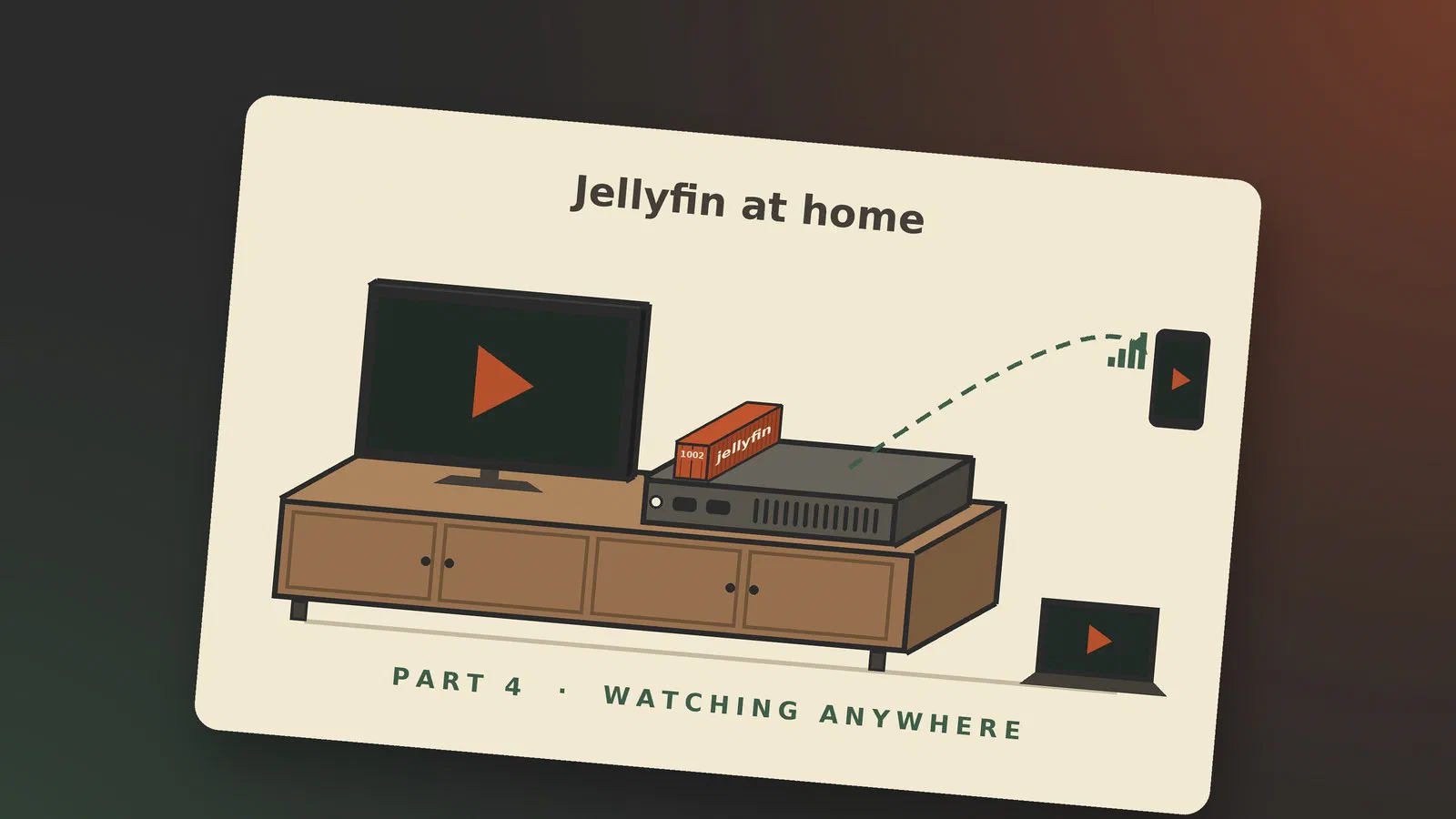
Today, Jellyfin’s container isn’t on Tailscale at all. The way in is the Raspberry Pi 4 that runs Home Assistant. Tailscale runs there inside Home Assistant, as the Tailscale app from the Home Assistant Community Apps project [10], and the Pi sits on Ethernet, directly on the main switch. It does two jobs:
- Subnet router. It advertises the home network to my tailnet, so my phone or laptop can reach devices at home that don’t run Tailscale themselves, by their ordinary home addresses [8]. This is how the Jellyfin app reaches the container.
- Exit node. It can also carry all of a device’s internet traffic home, which is handy on a hotel network [9]. That’s a different feature, and Jellyfin doesn’t need it.
So the Jellyfin app on my phone has the container’s home address as its server address, the same as it would at home, and Tailscale sends the traffic through the Pi. It works, and it’s how the very first login from the phone happened, during part 1’s music scan, on mobile data.
It has two weak points. The Pi is a single point of failure: if Home Assistant’s Pi is down, so is every service from outside. And by default a subnet router translates the addresses: traffic “appears to come from the router itself, not the original device” [8]. The Home Assistant app has the same default, an option called snat_subnet_routes that is on unless you turn it off [10]. So every remote client reaches Jellyfin from the Pi’s own home address. Jellyfin’s dashboard shows my phone as the Pi, and Jellyfin thinks it’s on the home network. That matters for transcoding, below.
Next: Tailscale in the container
The plan is to do for Jellyfin what I already did for Nextcloud, whose container is on the tailnet with its own Tailscale address. With Tailscale in the Jellyfin container [6], remote clients reach it directly, the Pi stops being in the path, and Jellyfin sees each device’s own Tailscale address instead of the Pi.
Nextcloud also shows the rest of the plan. Its name, nc.kaddu.dk, is in our public DNS, but it points at the container’s Tailscale address. Anyone can look the name up, but only a device on my tailnet can get to it. An nginx proxy in front of Nextcloud handles HTTPS with a Let’s Encrypt certificate for that one name. Jellyfin will get the same: its own name and its own certificate. The home is behind CGNAT and the name points at a Tailscale address, so Let’s Encrypt can’t check the name by reaching the server, and the certificate has to come through the DNS challenge.
The piece still missing is at home. Devices on the home network that aren’t on Tailscale, like the TV, should reach the same names on their home addresses. That’s split DNS, and it needs a DNS server at home that answers for our own names. Today every device asks Google. That’s a post of its own.
Sharing with family
This is where I haven’t got further yet: none of the family is on my tailnet. Tailscale has the right tool for it, though. Instead of inviting family members into my whole tailnet, I can share a single machine with them. They accept the share in their own Tailscale account, a free personal one is enough, and the share gives them “access to only the shared machine in your tailnet, and nothing else” [7]. A shared machine can answer their connections but can’t start any of its own towards them.
And it settles the Pi question: “Shared machines do not advertise subnets to the tailnets they’re shared into” [7]. Sharing the Pi would give the family nothing, and I wouldn’t want it to. To share Jellyfin, Jellyfin’s container has to be on Tailscale itself. One more reason to do that next.
Apps over Tailscale
Over Tailscale, an app doesn’t know it isn’t at home. On my phone it’s the official Android app with the container’s home address, and music played as direct play on mobile data from the first day.
Films taught me something. I assumed small files would play directly and 1080p and up would be transcoded. Then I played an old SD film on mobile data, and it was transcoded:
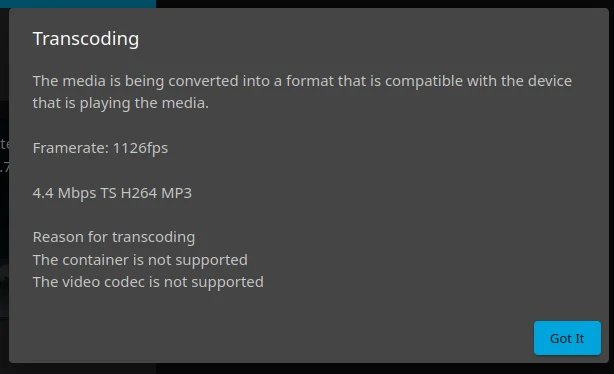
The file is from the 2000s: an AVI file with XviD video at 544x400, about 1.6 Mbit/s. The resolution had nothing to do with it. XviD is MPEG-4 Part 2, which Jellyfin’s codec table marks as not supported in the Android app or any of the browsers [3]. The app can’t play the AVI container or the XviD codec, so Jellyfin converted it to H.264 in a format the app can play. Phoebe’s graphics chip did that at 1126 frames per second, so the transcode itself was no problem (part 3). What decides direct play or transcoding is the container and the codecs, and what the app on the device can play.
A second test showed how much the app matters. A 1080p HEVC film, SDR, with AAC 5.1 sound, played on the same phone on our own Wi-Fi, so the network had nothing to do with it. It was transcoded too:
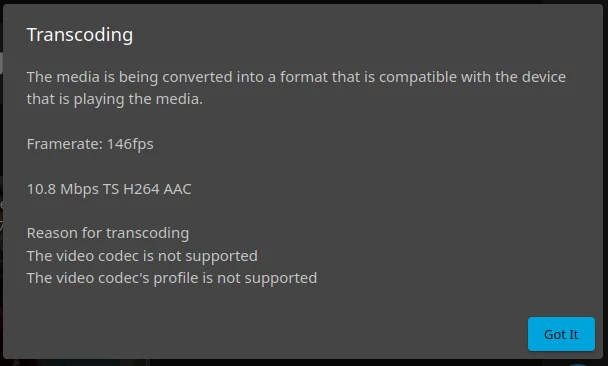
The audio wasn’t the problem. The reasons are the video codec and its profile. The transcode itself cost almost nothing: the Jellyfin container used 4 to 4.7 % CPU while phoebe’s graphics chip converted the film at 146 frames per second. Without the hardware transcoding from part 3, the processor would have done that work. Jellyfin’s codec table marks HEVC on Android as “Support depends on device and/or settings”, for both 8-bit and 10-bit [3]. H.264 plays almost everywhere. HEVC depends on the device, the app’s player and the file’s profile.
The other surprise was the size: the old SD film came out at 4.4 Mbit/s, almost three times the original. On mobile data that’s the wrong way. Jellyfin has a setting for this, per user: “Internet streaming bitrate limit (Mbps)”, a limit “for all out of network devices” [4]. But because the Pi translates the addresses, Jellyfin thinks my phone is at home, and the limit never kicks in. With Tailscale in the container, the phone arrives from its own Tailscale address, outside the home network, and the limit should apply. Until then, the fix is in the app: set a maximum streaming bitrate in its own playback settings. Since 2.7.3 the Android app passes that limit on to its built-in video player too [11].
What’s next
The apps are in place: the TV plays directly, and the phone works from anywhere through the Pi. What’s left is in the Tailscale section: Tailscale in the Jellyfin container, its own name with HTTPS, sharing it with the family, and split DNS at home. Those come as the setup gets done.
Next in the series is the part nobody enjoys until they need it: backing up and upgrading Jellyfin without losing the library, the watched lists and all the metadata from part 2.
Sources
- Clients (Jellyfin documentation): Requirements for the client list, and the supported browsers. Pulled 2026-11-24.
- Clients, all (jellyfin.org downloads): The official and third-party apps per platform. Pulled 2026-11-24.
- Codec Support (Jellyfin documentation): Which client plays which container and codec. Pulled 2026-11-24.
- Managing Users (Jellyfin documentation): Library Access, Parental Control, playback and remote-access settings per user. Pulled 2026-11-24.
- Reverse Proxy (Jellyfin documentation): The public-internet alternative to a VPN. Pulled 2026-09-26.
- Install Tailscale on Linux (Tailscale docs): Putting Tailscale in the Jellyfin container. Pulled 2026-11-24.
- Sharing your nodes with other users (Tailscale docs): Sharing one machine; shared machines don’t share their subnet routes. Pulled 2026-11-24.
- Subnet routers (Tailscale docs): Reaching the home network through one machine; source NAT on by default. Pulled 2026-11-24.
- Exit nodes (Tailscale docs): Routing all of a device’s internet traffic through one machine. Pulled 2026-11-24.
- Tailscale, Home Assistant Community App (documentation): Subnet routes, exit node and
snat_subnet_routesin Home Assistant. Pulled 2026-11-24. - Jellyfin for Android releases (GitHub): 2.7.0’s native player by default, 2.7.3’s bitrate fix. Pulled 2026-11-24.
- Jellyfin Desktop releases (GitHub): The rename from Jellyfin Media Player, and which versions are stable. Pulled 2026-11-24.
- Swiftfin releases (GitHub): 1.7.1, 16 November 2026. Pulled 2026-11-24.
- Findroid releases (GitHub): 1.2.0 needs Jellyfin 12.0 or newer. Pulled 2026-11-24.
- Jellyfin 12.0 (Jellyfin blog): The removed legacy addresses and sign-in. Pulled 2026-10-04.