Everything so far in this series can be gone in a second: a dead disk, a bad update, or a command typed on the wrong server. I wrote about the rule behind backups, and how my own setup measures up, in the post on 3-2-1 in practice. This part is the practical one: how Proxmox backs up a guest, and how you get it back.
Why back up: the 3-2-1 rule
Briefly: three copies of your data, on two kinds of media, one of them somewhere else. A snapshot isn’t one of those copies, since it lives on the same disks as the original. RAID and ZFS mirrors aren’t either. They keep you running when a drive fails, but delete a file, and it is deleted on every disk at once.
A backup in Proxmox is different: a full, separate copy of a guest, its
settings included, that can be brought back on this server or another one. The
tool behind it is called vzdump, and the web interface uses it too.
Backup modes: stop, suspend and snapshot
You choose between three modes. What they do differs between VMs and containers [1].
| Mode | Virtual machine | Container |
|---|---|---|
| Snapshot | Copies blocks while the VM runs. Lowest downtime, small risk of inconsistency | Takes a temporary storage snapshot and archives it. Needs storage that can do snapshots |
| Suspend | Kept for compatibility, more downtime with no reliable gain | Copies with rsync, then suspends for a second, shorter run. Needs temporary space |
| Stop | Shuts down in an orderly way, backs up, starts again. Highest consistency, short downtime | Stopped during the whole backup, which “potentially results in a very long downtime” |
For a VM, snapshot is the normal choice. If the QEMU guest agent from part 2 is running, Proxmox asks the guest to freeze its file systems for a moment, which removes most of that small risk [1].
For a container on ZFS, snapshot works as well, and it is what I would use. A database in the middle of a write is still only as consistent as it would be after a power cut, so for those, dump the database to a file before the backup runs, or take that guest in stop mode at night.
Choosing a backup storage target
A backup needs a storage that accepts backups. There are two kinds [1]:
- File-level storage, such as a directory or an NFS or SMB share, where backups are “regular files”. You can see them, copy them and delete them by hand.
- Proxmox Backup Server, where they are “de-duplicated chunks and metadata”.
On a fresh install, the storage called local accepts backups, so that works
right away. It also sits on the same disk as everything it is backing up, so
it protects you from a bad update and nothing else. ZFS storage for guest disks,
like vmdatanvme from
the storage part, can’t hold backup files at all: it has
volumes and datasets for guests, not a file area.
So the first real step is a target on another machine. For most homelabs that’s an NFS share on a NAS or an old computer. Add it under Datacenter > Storage > Add > NFS with Backup in the Content field [2].
Proxmox mounts the share for you, under /mnt/pve/ followed by the storage ID [2]. You give it the server’s address and the export, the folder the NAS shares. In storage.cfg a backup share looks like this [2]:
nfs: backup
        path /mnt/pve/backup
        server 10.0.0.10
        export /space/backup
        content backup
SMB, the Windows way of sharing folders, works too. Nearly every NAS speaks it, and in Proxmox the storage type is called CIFS. It works like NFS, with a server and a share, plus a user name and a password. The password is kept in a file only root can read, /etc/pve/priv/storage/ followed by the storage ID and .pw [4]. If your NAS offers both, I would pick NFS for Proxmox. It is the Linux-native one, and it doesn’t need a password stored on the server.
The files have names that say what they are, for example
vzdump-lxc-105-2009_10_09-11_04_43.tar with a compression ending
[1].
One catch for containers: “By default additional mount points besides the Root Disk mount point are not included in backups”, you have to tick Backup on each volume mount point, and “Device and bind mounts are never backed up” [1]. If you keep your data on a bind mount, your backup holds the program and none of the data. It is exactly the sort of thing you discover during a restore.
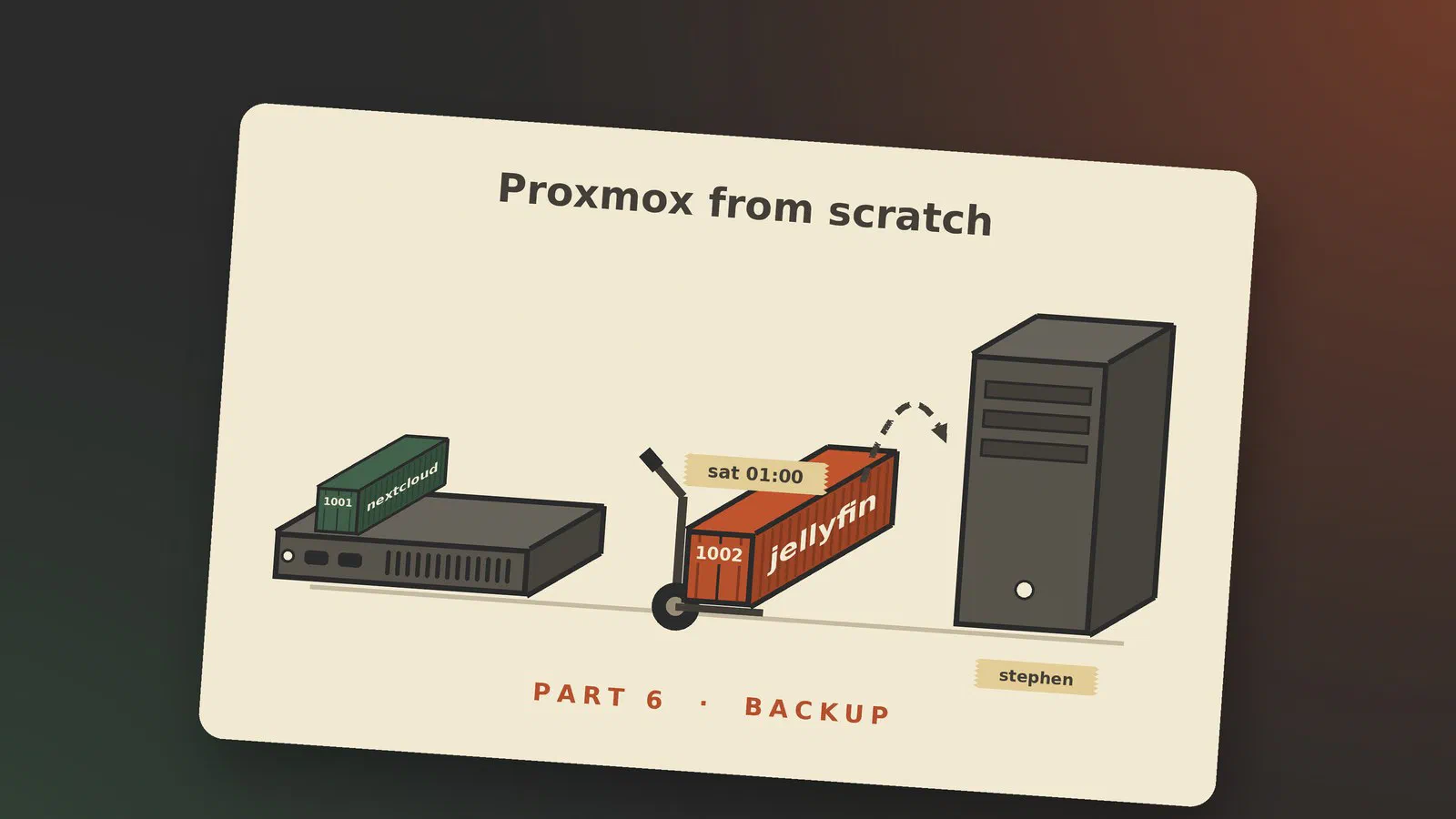
My own containers show both sides. In my Jellyfin container from Jellyfin at home part 1, the config and artwork volumes have Backup ticked. The transcode cache doesn’t, and neither do the media libraries, which are too big to copy in full on every run and are already copied to stephen by ZFS. My Nextcloud container is the bad example. I made all its data volumes by hand as bind mounts, so a Proxmox backup of it would hold Nextcloud and none of the files. The ZFS pulls to stephen cover those datasets, which is the only reason that isn’t a disaster.
Creating a scheduled backup job
I don’t run a Proxmox backup job myself today. All my backups are ZFS pulls that stephen starts, more on that under Proxmox Backup Server below. This is still the job I’d recommend setting up first on a new server.
Go to Datacenter > Backup > Add.
- Node and Selection mode: I would choose all guests, so a new guest is included automatically. Excluding one later is a decision you make. Forgetting to include one isn’t.
- Storage: your backup target.
- Schedule: the format is like systemd’s calendar events [1], so
sat 01:00is Saturday at one o’clock andmon..fri 21:00is weekday evenings. - Mode: Snapshot.
- Compression: ZSTD, “the fastest of these three algorithms” [1].
The jobs are stored in /etc/pve/jobs.cfg, so in a cluster they belong to all the
nodes. Repeat missed is worth ticking on anything that isn’t switched on all
the time [1]: the job then runs when the server comes back.
Then press Run now, and read the log. The first run is where you find out that the share is full or the permissions are wrong, and you want to find out today. Set up a way to hear about failures as well, under Datacenter > Notifications. A backup that has been failing silently for three months is worse than none, because you think you have one.
If the target sits at the end of a slow link, --bwlimit is your friend. It takes
KiB/s, so 10240 limits reads to about 10 MiB/s [1].
Retention settings
Without pruning, backups pile up until the disk is full. On the job’s Retention tab you say how many to keep: keep-last, keep-hourly, keep-daily, keep-weekly, keep-monthly, keep-yearly. They are “processed in the order given above”, and each only looks at backups the ones before it didn’t cover [1].
For a small homelab, I would start with something like this:
| Setting | Value | Gives you |
|---|---|---|
| keep-last | 3 | the last three, for a failed update |
| keep-daily | 7 | a week of daily copies |
| keep-weekly | 4 | a month of weekly ones |
| keep-monthly | 6 | half a year, for what you only notice late |
A backup you mark as Protected is ignored by pruning and doesn’t count towards these numbers [1], which is useful before a big upgrade.
Restoring a VM or container
A backup you have never restored is a hope. So try one now, while nothing is wrong.
In the web interface, select the guest, go to Backup, choose a backup and press Restore. To test without touching the original, go to the backup storage’s Backups tab instead, and restore under a new ID.
Or from the command line [1]:
# a VM, as new ID 601
qmrestore /mnt/backup/vzdump-qemu-888.vma 601

# a container, as new ID 600
pct restore 600 /mnt/backup/vzdump-lxc-777.tar
After a test restore, start the copy with its network disconnected, or it will fight the original over its IP address and MAC address. Log in and check that your data is really there, the database opens, and the mount points you expected came along. Then delete the copy.
Restore also moves guests. With a backup on shared storage, a guest can come back on a different server, which is one way to move guests before you have a cluster.
I have to admit I haven’t done this myself yet. I have never brought a guest back from one of my ZFS copies on stephen, so I don’t know how long it takes or what I would trip over. A restore test of one container and one VM is next on my list, and it needs a date in the calendar, not “some evening”. Until I’ve done it, my backups are a hope too.
Proxmox Backup Server
Proxmox Backup Server (PBS) is a separate product, at version 4.2 now [3], and it’s free to use like Proxmox VE. It runs on its own machine or in a guest, and shows up in Proxmox VE as one more storage.
What it adds:
- Deduplication. Backups are stored as chunks, so a block that hasn’t changed is only kept once, across backups and across guests [1].
- Incremental runs. After the first run, each backup is much quicker, and still appears as a full backup you can restore on its own.
- Live restore. A VM can start while it is being restored, though with “limited disk read speeds” until the data has arrived [1].
- Verification. It can check that the stored chunks are still readable, on a schedule [3]. That doesn’t replace a restore test, but it finds a bad disk early.
- Sync. A second PBS can pull from the first, or be pushed to, which is one way of getting a copy elsewhere [3].
- Encryption on the client side, so an off-site copy can sit on a machine you don’t fully trust [3]. If you lose the key, you lose the backups, so keep a copy of it somewhere other than the server it protects.
When is it worth it? With one or two guests and a NAS, plain vzdump to NFS is
easier, and you can read the files without any special tooling. With several guests
that are similar, or on a slow link, deduplication and incremental runs change the
picture.
In my own lab, the machine for it would be stephen. Today it doesn’t run PBS. It pulls ZFS replication from phoebe and priscilla every hour with syncoid instead, which is a different kind of protection: quick and efficient, but it knows about datasets, not guests, so what you get back is the disks and not a guest you can restore in two clicks. The two go together well.
For now, syncoid is my backup. PBS is on the list for later, most likely on stephen, which isn’t the separate machine the documentation prefers, but it is the one with the disks.
Check that it actually runs
A backup that fails quietly is worse than none, because you think you have one. I found that out in the storage part, when I renamed my datasets and ran a pull to stephen by hand. stephen’s copy of my Jellyfin container hadn’t been updated since 25 October. I had recreated the container that evening, so the copy on stephen no longer had a snapshot in common with it, and syncoid refused to overwrite it, every hour, for nine days. syncoid was right to refuse, and said so. I just never saw it, because of the order of two redirections in the cron line: 2>&1 >> /var/log/syncoid.log sends normal output to the log and errors to cron’s mail, which I don’t read. >> /var/log/syncoid.log 2>&1 sends both to the log. The fix for the copy was to rename the old one on stephen out of the way and let the next pull make a fresh one.
Whatever runs your backups, check now and then that each guest’s newest backup is from today, not just that the job ran.
Getting a copy offsite
All of the above lives in one building, and the third part of 3-2-1 says it mustn’t. There are three reasonable ways for a homelab:
- A USB disk that you copy to and take somewhere else, to work or to family. It is cheap and offline, and it depends on you remembering to do it.
- A second PBS at a friend’s or family member’s place, syncing over a VPN, with the backups encrypted [3].
- Cloud storage, encrypted before it leaves the house. Check the price of getting it all back, not just the price of keeping it there.
Whichever you pick, a calendar reminder to test a restore from that copy once or twice a year does more than a better tool. I’m not there myself. Today I have no offline copy and no off-site copy at all, as the 3-2-1 post admits.
What’s next
The guests now have disks, a network and a way back. In the next part, the servers stop being separate machines: we build a three-node cluster.
Sources
- Backup and Restore (Proxmox VE Administration Guide), pulled 2026-11-02
- Storage: NFS (Proxmox VE), from the outline of 2026-09-26, not reread
- Proxmox Backup Server documentation, version 4.2.8, pulled 2026-11-02
- Storage: CIFS (Proxmox VE documentation), pulled 2026-10-29 (for Storage in Proxmox; moved here with the SMB text)