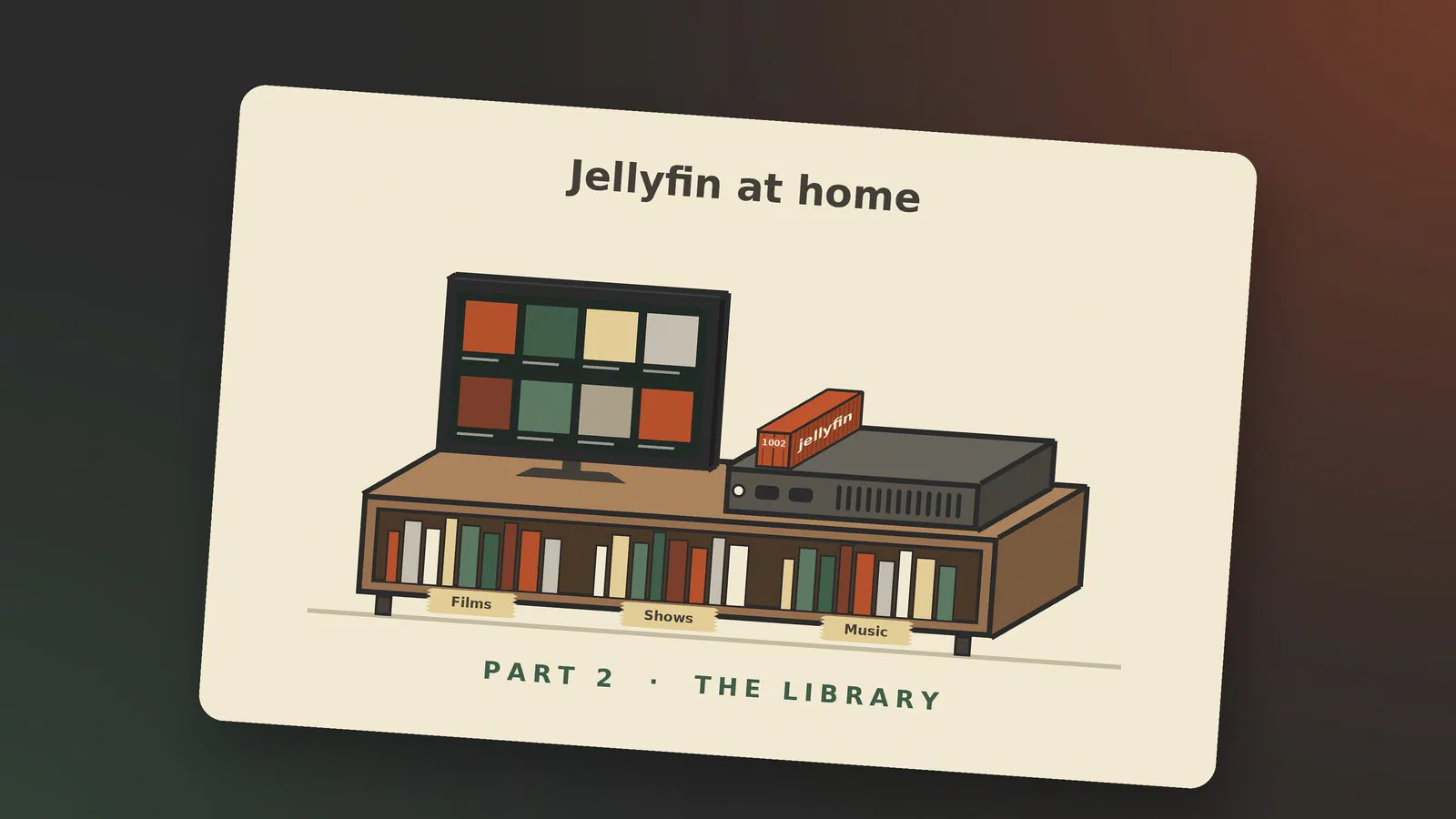
In part 1 Jellyfin got its first library. This part is about what to do before you copy the next one in: how to name folders and files so Jellyfin recognises them the first time.
Why naming matters
Jellyfin does not look inside a film to find out what it is. It reads the folder name and the file name, looks that up with a metadata provider, and fetches the title, the poster and the description. A good name gives the right film. A bad one gives the wrong film, a remake from another decade, or nothing.
Music is the exception: there Jellyfin reads the tags inside the files.
It is much less work to rename before the first scan than to repair a library afterwards. That is the reason I load mine in batches.
My own surprise came with the music, the first library I added. After the first scan, most of the albums had no cover, and one of my favourite bands had become three different artists. More about both under Music below.
Whatever the type, avoid these characters in names; Jellyfin’s
documentation lists them as known to cause problems: < > : " / \ | ? *
[2] [3].
Movies
One folder per film, and the file inside named like the folder [1]:
movies
├── Tron (1982)
│   └── Tron (1982).mp4
└── WarGames (1983)
    ├── WarGames (1983).mkv
    └── WarGames (1983).da.srt
The pattern is Movie Name (year). The year is optional according to
the documentation [1]. I always include it, because it is
what separates a film from its remake: The Karate Kid from 1984 is
not The Karate Kid from 2010. Search TMDB for “Tron” without a year,
and the first hit is Tron: Ares from 2025, not the 1982 film.
Files often arrive with names full of release tags and quality labels. Rename them to the pattern above before the first scan.
More than one version of a film
If you have the same film twice, for example in 1080p and in 4K, keep both in the film’s folder and add a label after the name. “The version label must be separated from the filename prefix by either a hyphen, dot, underscore, or enclosed in square brackets.” [1]
Tron (1982)
├── Tron (1982) - 2160p.mkv
└── Tron (1982) - 1080p.mp4
Jellyfin then shows one film and lets you pick the version when you play it. This is useful with 4K: the TV gets the 4K file, and a phone gets the 1080p one without the server having to convert anything. More about that in part 3.
Extras
Trailers, deleted scenes and the like go in subfolders with fixed
names, such as trailers, behind the scenes, deleted scenes and
interviews [1]. Do not leave them loose in the film’s
folder, or Jellyfin may take one for the film. extras works as well,
as a “generic catch all for extras of an unknown type”
[1], which is handy when a series comes with a folder of
bonus material called just that.
Shows, seasons and episodes
A folder for the series, a folder for each season, and the season and episode number in every file name [2]:
shows
└── Star Trek - Deep Space Nine (1993)
    ├── Season 01
    │   ├── Star Trek - Deep Space Nine S01E01.avi
    │   └── Star Trek - Deep Space Nine S01E02.avi
    └── Season 02
        └── Star Trek - Deep Space Nine S02E01.avi
The real title has a colon in it, Star Trek: Deep Space Nine, and a colon is one of the characters to avoid, so it becomes a hyphen. The year and the episode numbers are enough for Jellyfin to find the right series. A folder named the way files often arrive, with release tags, “boxset” and quality labels in the name, is easily not recognised at all: no poster, no description, no episode titles.
The rules that people get wrong [2]:
- The season folder is called
Seasonand a number, with the word written out. NotS01orSE01.Season 1works, but the documentation recommends a leading zero,Season 01, “for the best results”. - Episodes go in season folders. Do not mix loose episodes and season folders in the series folder.
- Two episodes in one file are named like
Star Trek - Deep Space Nine S01E01-E02.avi. - Specials go in
Season 00. The documentation recommends giving them descriptive names, because numbering them like ordinary episodes can fetch the wrong information.
Jellyfin 12 added two things here: episode numbers with three or more
digits, and more than one version of an episode, named the same way as
film versions (... S01E01 - 1080p.mkv) [2]
[10].
Music
Music is organised the other way round. “Filenames generally do not matter since the info will be scraped from the embedded metadata of the tracks.” [3] What matters:
- One folder per album. “Albums are organized in folders, with one folder containing one and only one album.” [3] How you group the album folders (by artist, by year) is up to you.
- The tags have to be right. Artist, album artist, album, track number and year come from the tags. If a compilation shows up as forty artists with one track each, the album artist tag is missing.
- Albums with several discs are recognised by the disc number and total discs tags. All discs can be in the same folder [3].
- Cover art can be in the tags or a file in the album folder named
cover.jpgorfolder.jpg[3]. - Lyrics are a file with the same name as the track and the ending
.lrc,.elrcor.txt[3].
Two file types need renaming: an .mp4 file with only sound in it is
not recognised as music until it is called .m4a, and the same goes
for .mkv and .webm, which become .mka [3].
A whole music collection is a good first library precisely because it depends on the tags. The first scan shows at once where they are missing or inconsistent.
What the first scan showed
My own music is ripped from CDs I own, or bought as digital albums. About 45 GB, 372 albums in 180 artist folders. The first scan showed both kinds of problem.
Covers. Only 22 of the first 100 albums had a cover. Just 52 of the
album folders have a folder.jpg or cover.jpg, so the rest depend on
art inside the files or on Jellyfin finding a cover online. And during
the scan, MusicBrainz, the music database Jellyfin looks albums up in,
answered many requests with “busy” (HTTP 503). An album that isn’t
matched there gets no cover from it either.
What helped was a plugin and a second pass. I added the Cover Art
Archive plugin from the catalogue, ticked it as an image source for
albums, restarted Jellyfin, and ran Refresh metadata on the library
with Search for missing metadata. A normal scan isn’t enough: it only
looks at new and changed files. Afterwards, 121 of the 372 albums had a
cover, about a third. The rest is a job for the tags and for a few
folder.jpg files of my own.
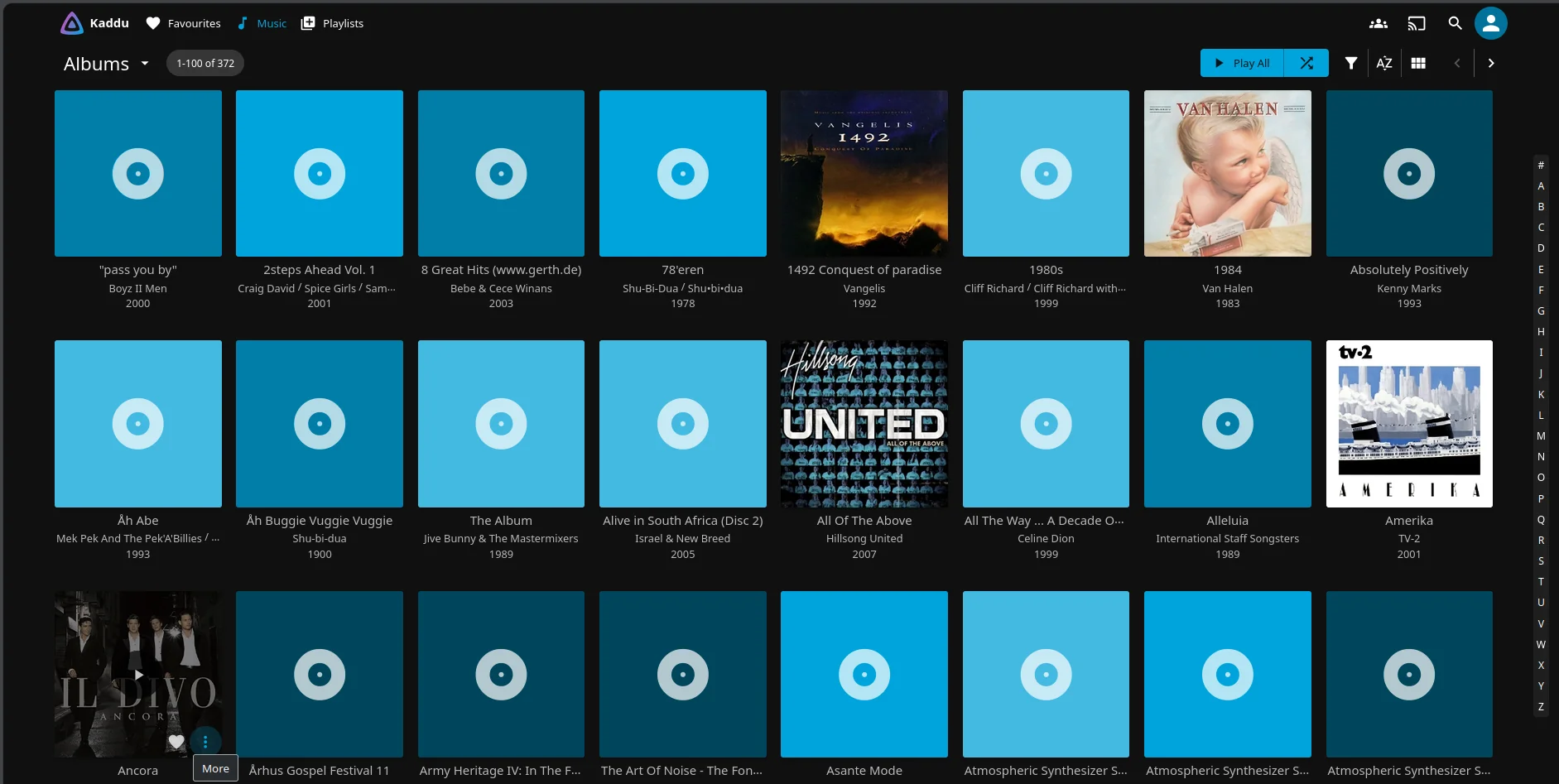
Tags. Jellyfin counts 850 artists from my 180 artist folders, because every name in the artist tags becomes an artist. Featured artists, every track artist on a compilation, and every spelling. The Danish band Shu-bi-dua turned up three times: as Shu-bi-dua, as Shu-Bi-Dua, and with bullets, Shu•bi•dua. Other things the first screen showed:
- a year of 1900 on an album, a placeholder someone put in the tags
- “(Disc 2)” in an album title, so the two discs show up as two albums
- a compilation with all its artists as album artist, instead of Various Artists
- a web address in an album title
None of that is Jellyfin’s fault. It shows the tags as they are, and the fix is in the files: correct the tags with a tag editor, then scan again. I haven’t started on mine yet. With 372 albums, that’s a job for the winter evenings.
Books
Jellyfin can also hold a library of books, with EPUB, PDF and comics, and audiobooks [4]. I haven’t set one up. My books are PDFs I have bought, and whether Jellyfin is the right place for them, or a program made for books, is a post of its own.
Provider IDs in folder names
When two titles have the same name, or Jellyfin keeps choosing the wrong one, you can tell it exactly which film or series you mean. Look the title up at the provider, take the number from the address of its page, and put it in square brackets in the folder name [1] [2]:
WarGames (1983) [tmdbid-860]
Star Trek - Deep Space Nine (1993) [tmdbid-580]
The number is in the address of the title’s page:
themoviedb.org/movie/860-wargames is WarGames, and
themoviedb.org/tv/580-star-trek-deep-space-nine is the series
[7]. WarGames is a good case for it: a search for the
title on TMDB also finds a sequel from 2008 and a long row of
wrestling events with the same name.
The film file inside is named the same way as the folder, ID included.
Jellyfin 12 reads tmdbid, tvdbid and imdbid, and the shorter
tmdb, tvdb and imdb [10].
I do not do this for every title. I do it for the ones that went wrong.
Metadata providers
TMDB and TVDB
Jellyfin comes with three sources for films and shows: The Movie
Database (TMDB), the OMDb API, which only has English text, and local
.nfo files [6]. TMDB is the one that does the work. TheTVDB,
fanart.tv and AniDB are official plugins you can add from the plugin
catalogue [6].
For films I stay with TMDB. For shows, TheTVDB is the alternative, and the reason to install it is usually the episode order. The two databases don’t always agree on it: specials, double episodes and “DVD order” against “aired order” can push the numbers out of line, and then Jellyfin shows the wrong title and description for an episode [7] [8].
Deep Space Nine shows how little it takes. Its pilot, Emissary, is double length. TMDB counts it as one episode, S01E01, and Past Prologue is S01E02 [7]. Copies that count the pilot as episodes 1 and 2 have every following episode in the season one number off, and Jellyfin then fetches the next episode’s title and description for each file. Numbering the files in TMDB’s order fixed it, and I didn’t need the TheTVDB plugin.
Fixing a wrong match: Identify
When a title was matched wrongly despite good names, you don’t have to rename anything. On the film or series, open the menu (the three dots) and choose Identify. Search by name and year, or paste the TMDB ID, and pick the right one from the list. Jellyfin then fetches everything again for that title.
If you have corrected something by hand, Edit metadata has a setting to lock the item, so a later refresh doesn’t overwrite your changes.
For a whole library there is Refresh metadata in the library’s menu. It can fill in only what is missing, which is the one to try after a scan where MusicBrainz was busy, or replace everything.
Subtitles and other external files
A subtitle file goes next to the film with the same name, plus the language and, if it applies, a flag [1] [5]:
WarGames (1983).da.srt
WarGames (1983).en.sdh.srt
WarGames (1983).en.forced.srt
forced is for subtitles that only translate the foreign-language
lines, and sdh is for subtitles for the deaf and hard of hearing.
In Jellyfin 12 the subtitle settings moved from one place for the whole server to each library [10], so they are set when you create the library, or under Manage library afterwards.
Tools that rename for you
For a big collection there are programs that do it for you.
tinyMediaManager looks each title up, renames the folders and files to
the pattern Jellyfin wants, and can write .nfo files for Jellyfin at
the same time [9]. Let it work on a copy first,
or on a few titles, until you trust what it does.
What’s next
The library is named and recognised. Part 3 is about what happens when a device cannot play a file as it is, and how the graphics chip in the server helps.
Sources
- Jellyfin: movies, pulled 2026-10-05, rechecked 2026-11-11
- Jellyfin: shows, pulled 2026-10-05
- Jellyfin: music, pulled 2026-10-05
- Jellyfin: books, pulled 2026-10-05
- Jellyfin: external files, pulled 2026-09-25
- Jellyfin: metadata, pulled 2026-09-25, rechecked 2026-11-11
- The Movie Database (TMDB), searched 2026-11-11
- TheTVDB
- tinyMediaManager, pulled 2026-11-11
- Jellyfin 12.0 release notes (GitHub), pulled 2026-09-25